
TABLE OF CONTENTS
- Overview
Overview
The Workspaces feature enables IP teams to manage collaborative decision-making directly within EC+.
Workspaces provide a dedicated area where a Decision Maker can gather input from multiple stakeholders, review responses, and record a final decision on one or more IP assets. Instead of using email chains and spreadsheets outside the system, all discussions, responses, and decisions remain linked to the relevant cases in EC+.
1- Create a Workspace
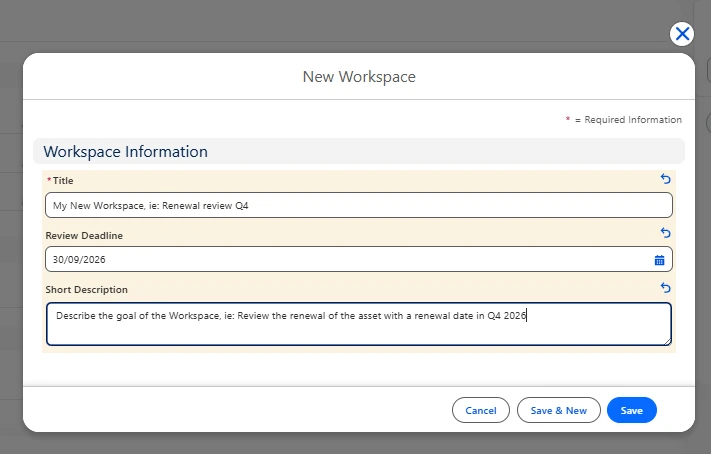
Decision Makers can create a Workspace to initiate a review process.
When creating a Workspace, users can define:
Workspace name
Description
Review deadline
Reviewers
Associated IP records
Each Workspace receives a unique reference and is initially created in Draft status.
To create a Workspace:
Navigate to Workspaces.
Click New Workspace.
Enter the Workspace details.
Save the Workspace.
2- Associate Cases
Workspaces need to be linked to IP assets under review.
Users can associate one or multiple cases, including:
Patents
Families
Trademarks
Designs
Invention Disclosures
General Matters
Renewals
Conflicts
Third Party Rights
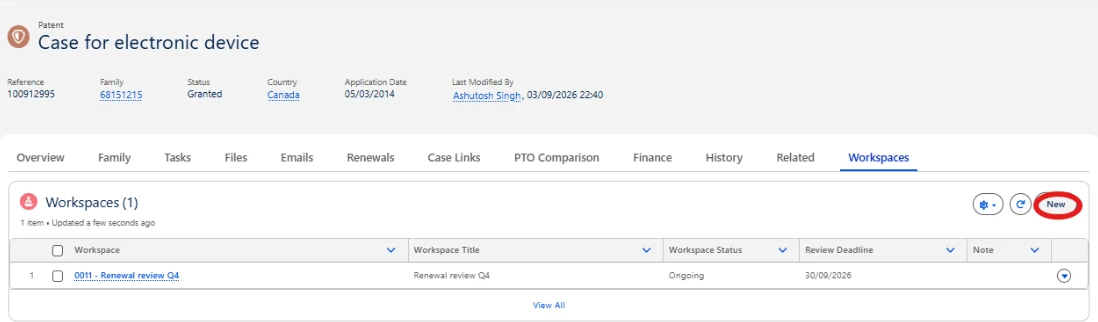
Cases may be added directly from the record page of a case
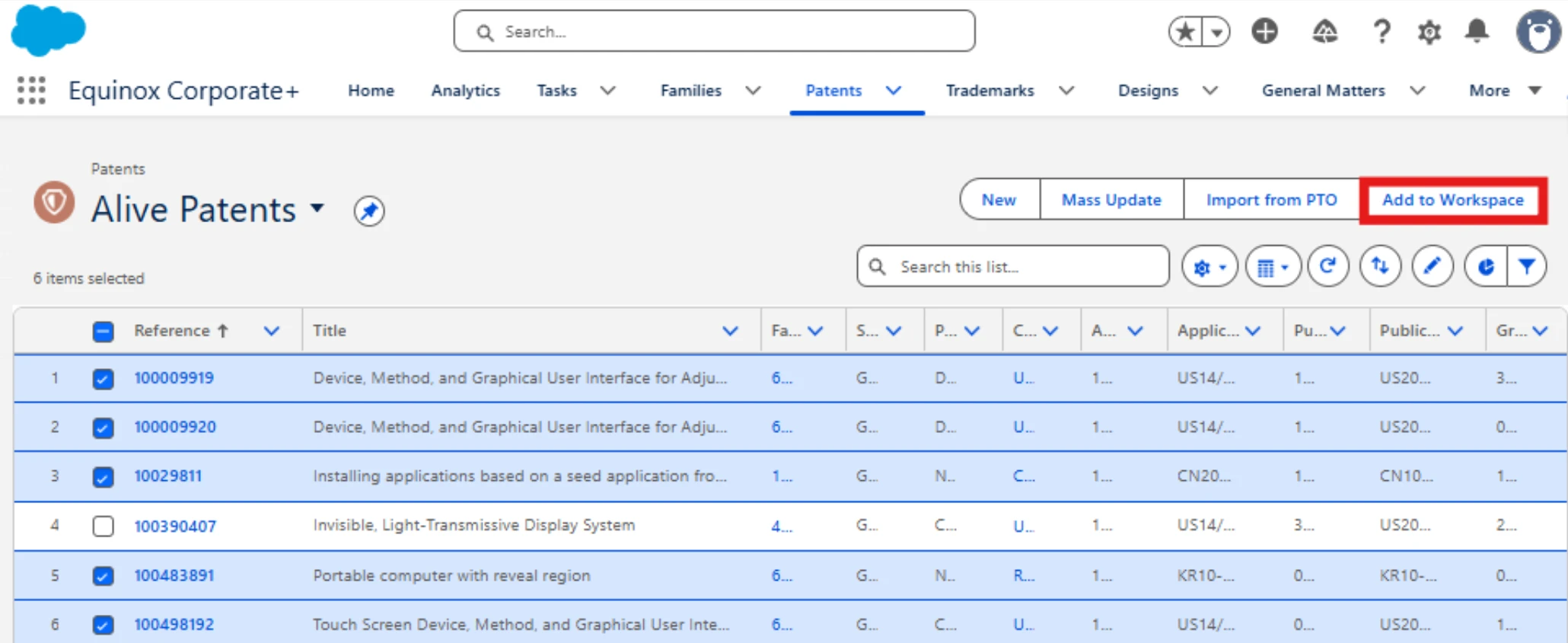
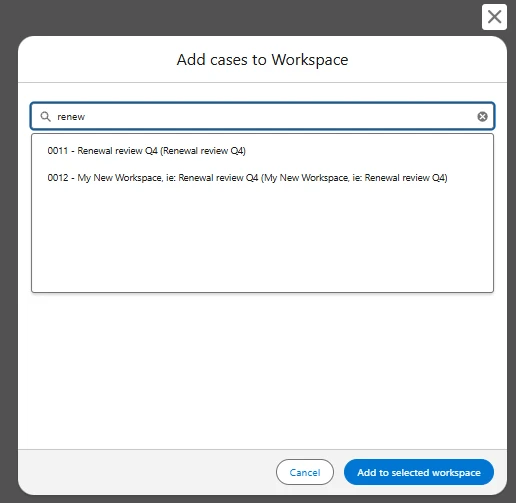
Cases may also be added through these 9 objects list views using bulk actions.
3- Configure Questions
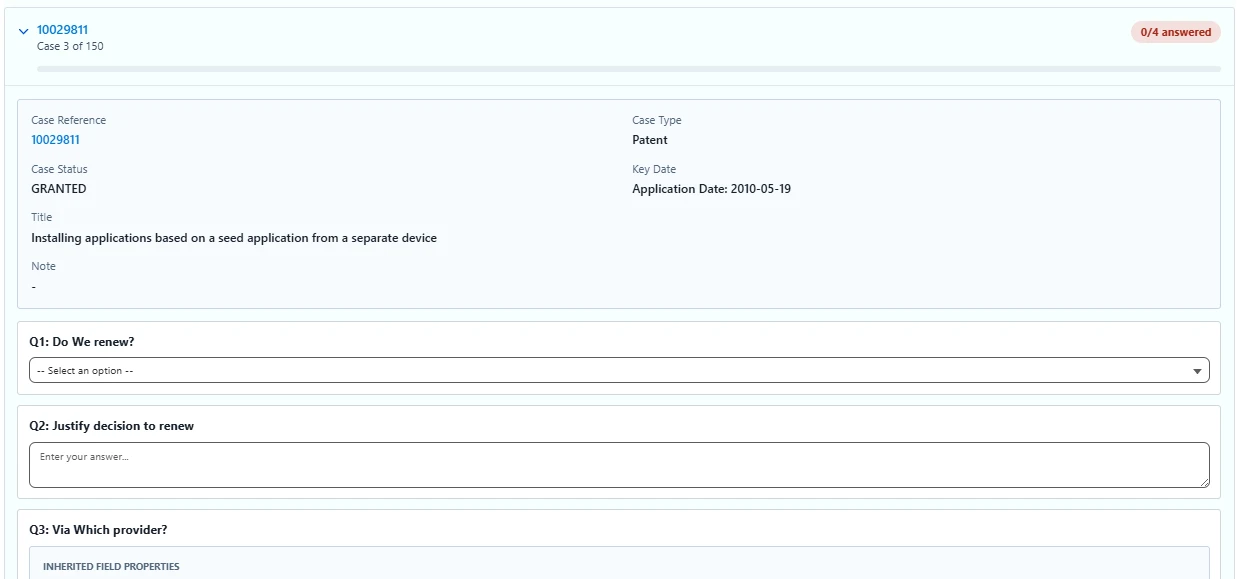
Decision Makers can create questions to collect structured feedback from reviewers.
Supported question types include:
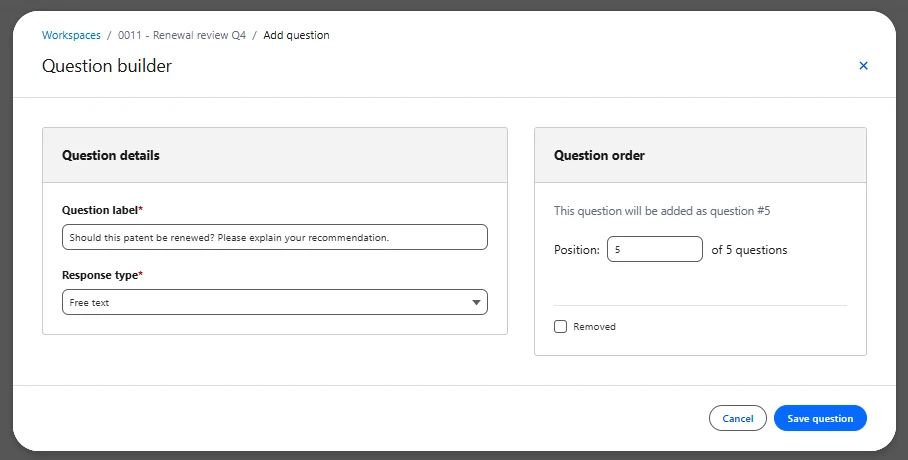
Free Text Questions
Allow reviewers to provide detailed comments and recommendations.
Example:
Should this patent family be renewed? Please explain your recommendation.
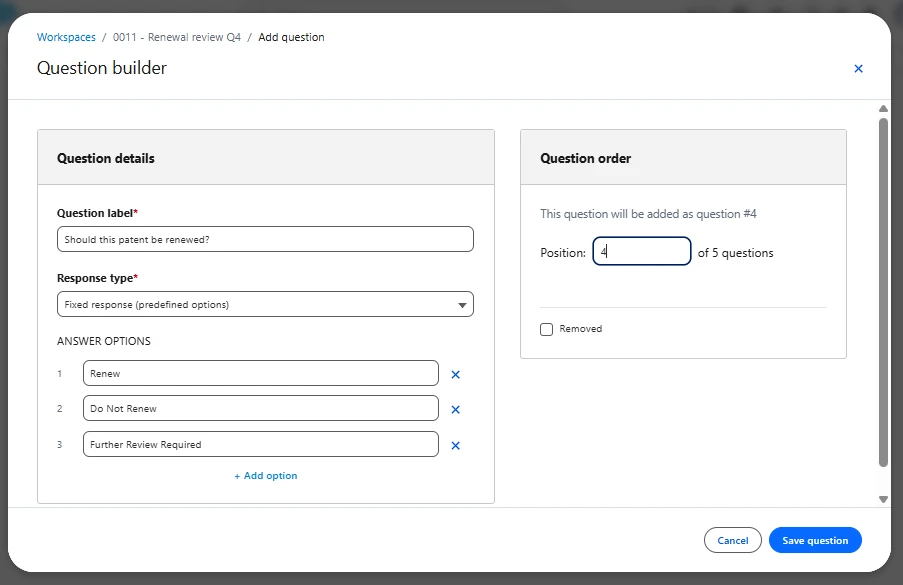
Fixed Response Questions
Allow reviewers to select predefined answers.
Example:
Renew
Do Not Renew
Further Review Required
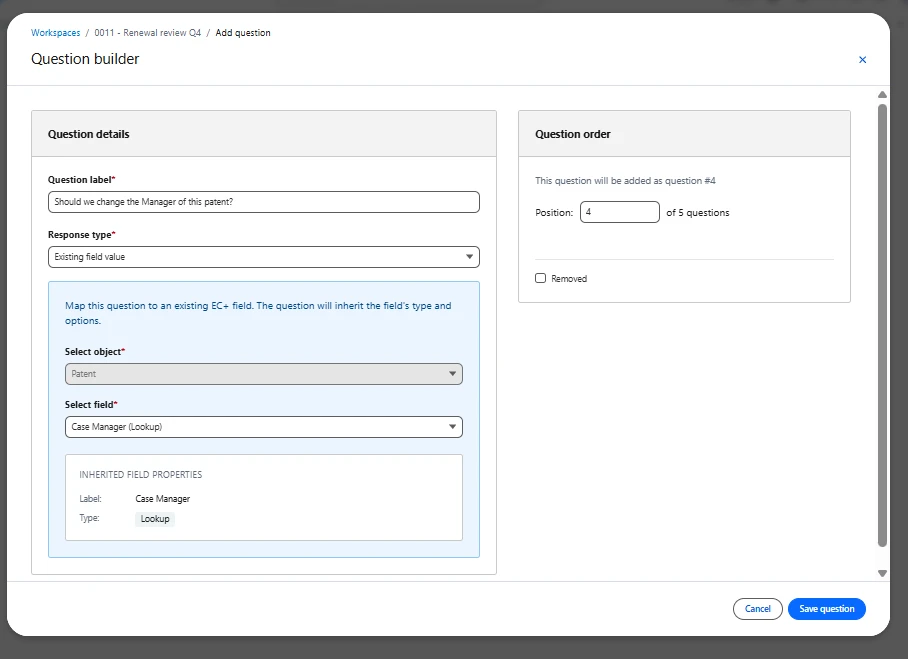
Existing Field Questions
Questions can also display values from existing EC+ fields, providing Reviewers with current portfolio information while collecting recommendations.
4- Assign Reviewers
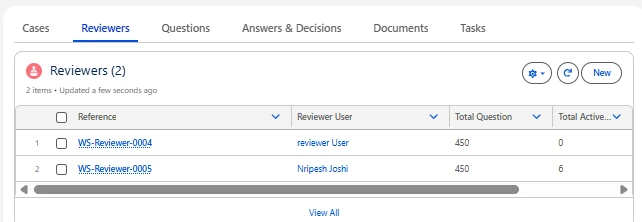
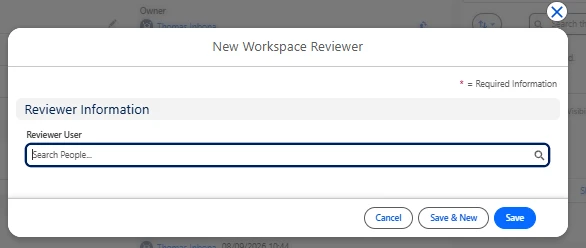
Reviewers can be added directly to the Workspace.
Once assigned, reviewers receive access to the Workspace once it is set to Ongoing Status and can provide their responses through a dedicated interface.
Decision Makers can:
Add reviewers
Remove reviewers
Track participation
Monitor completion progress
5- Workspace status management
A Workspace can be in 3 different status: Draft, Ongoing or Closed.
Draft Status
At the creation the workspace is set to ‘Draft’ status which allows the Decision Maker to configure it: add cases, questions and reviewers and even delete those linked records.
In draft Status, the reviewers can not yet see and access to the Workspace (Will be the case only when its moves to ‘Ongoing’ status.
The Decision Maker must have at least one linked case, one question and one reviewer to be able to change the status to ‘Ongoing’
Ongoing Status
As soon as the Decision Maker changes the Workspace status to ‘Ongoing’, the reviewers are notified, get access to it and can start to answer the questions.
For an Audit perspective, in Ongoing status, the linked Cases, Questions or Reviewers cannot be deleted anymore but the Decision Maker can mark them as removed to exclude them from the Workspace and from the answering process.
Closed Status
The decision Maker can anytime decide to close his Workspace. The Workspace becomes in read only and nothing can be updated on it for audit perspective.
The only action allowed is to clone the closed workspace in order to create and setup a new one.
6- Submit Responses
Reviewers access assigned Workspaces from the tab "Workspace" in the navigation bar in EC+.
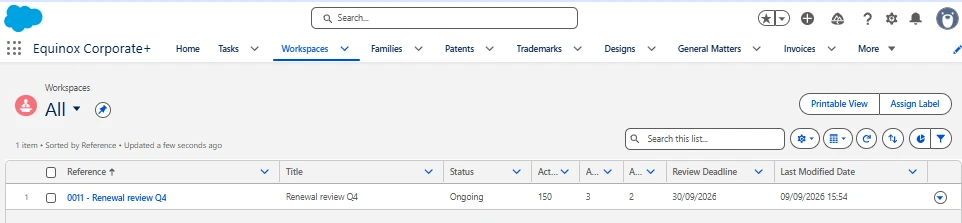
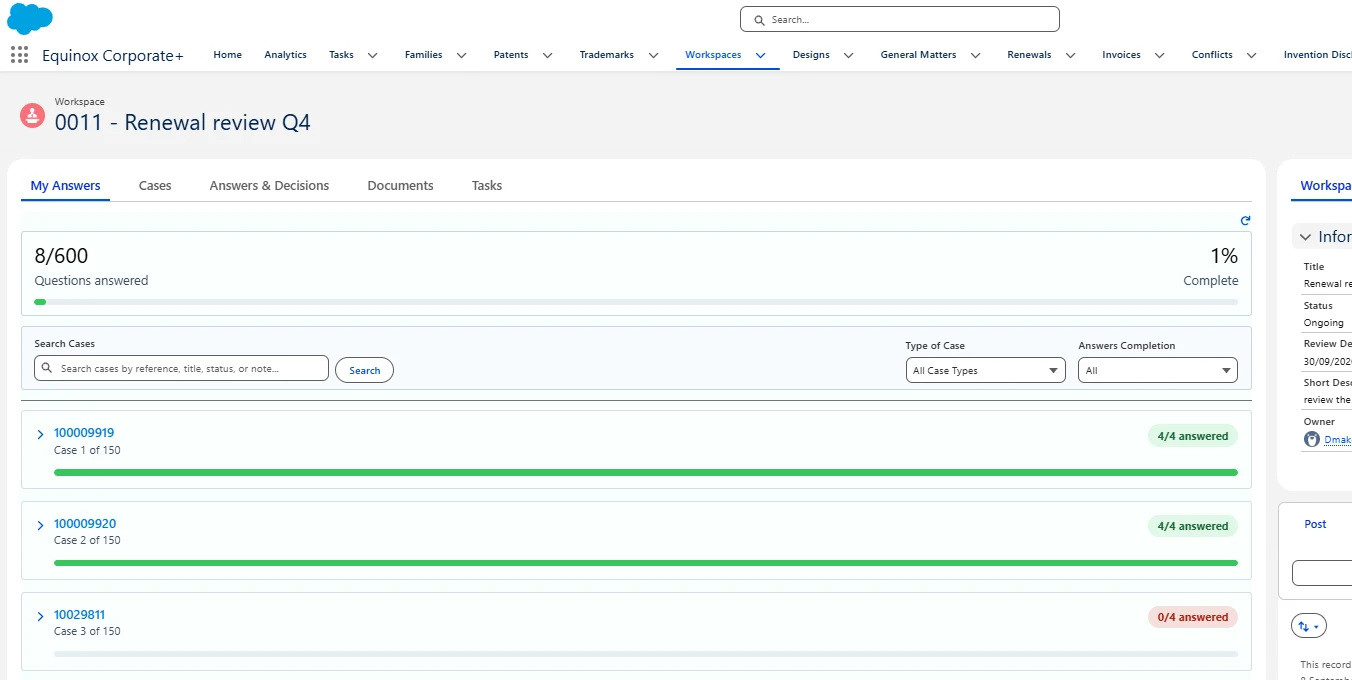
The My Answers view allows reviewers to:
Review assigned cases
Answer questions
Update responses
Track completion status
The Reviewer can search for specific cases or filter the list of cases by Type of Case or Answers Completion
Responses must be saved case by case and remain associated with the reviewed case and Workspace.
7- Review Results
As responses are submitted, Decision Makers can monitor participation and analyze feedback.
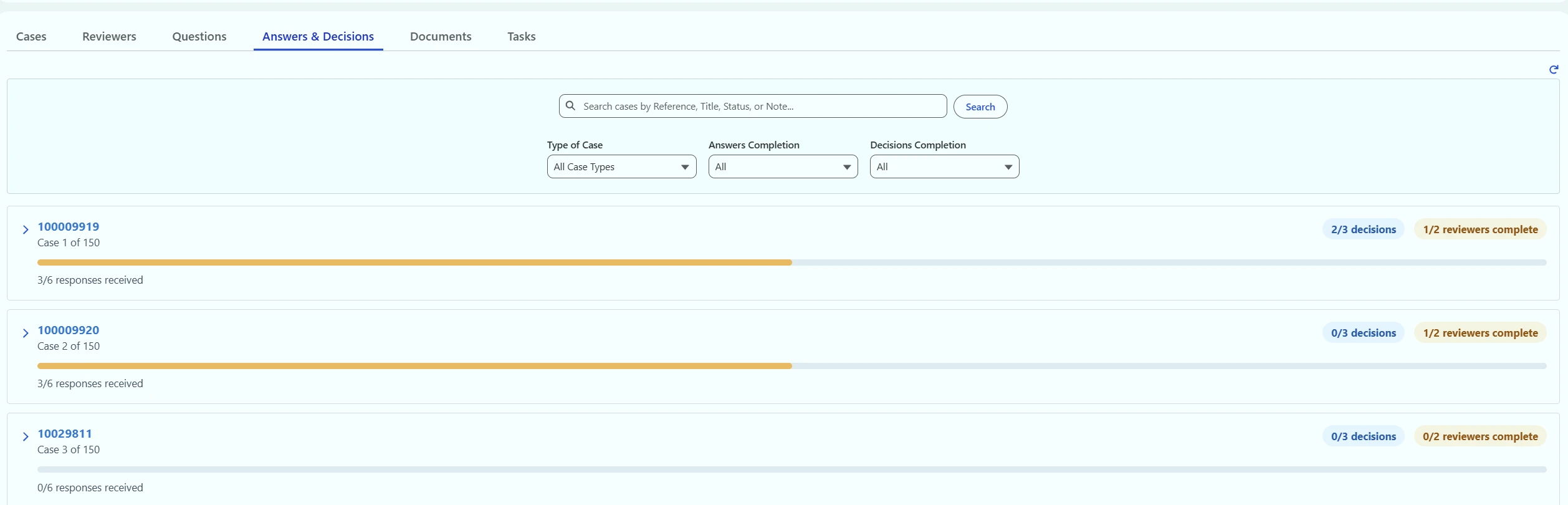
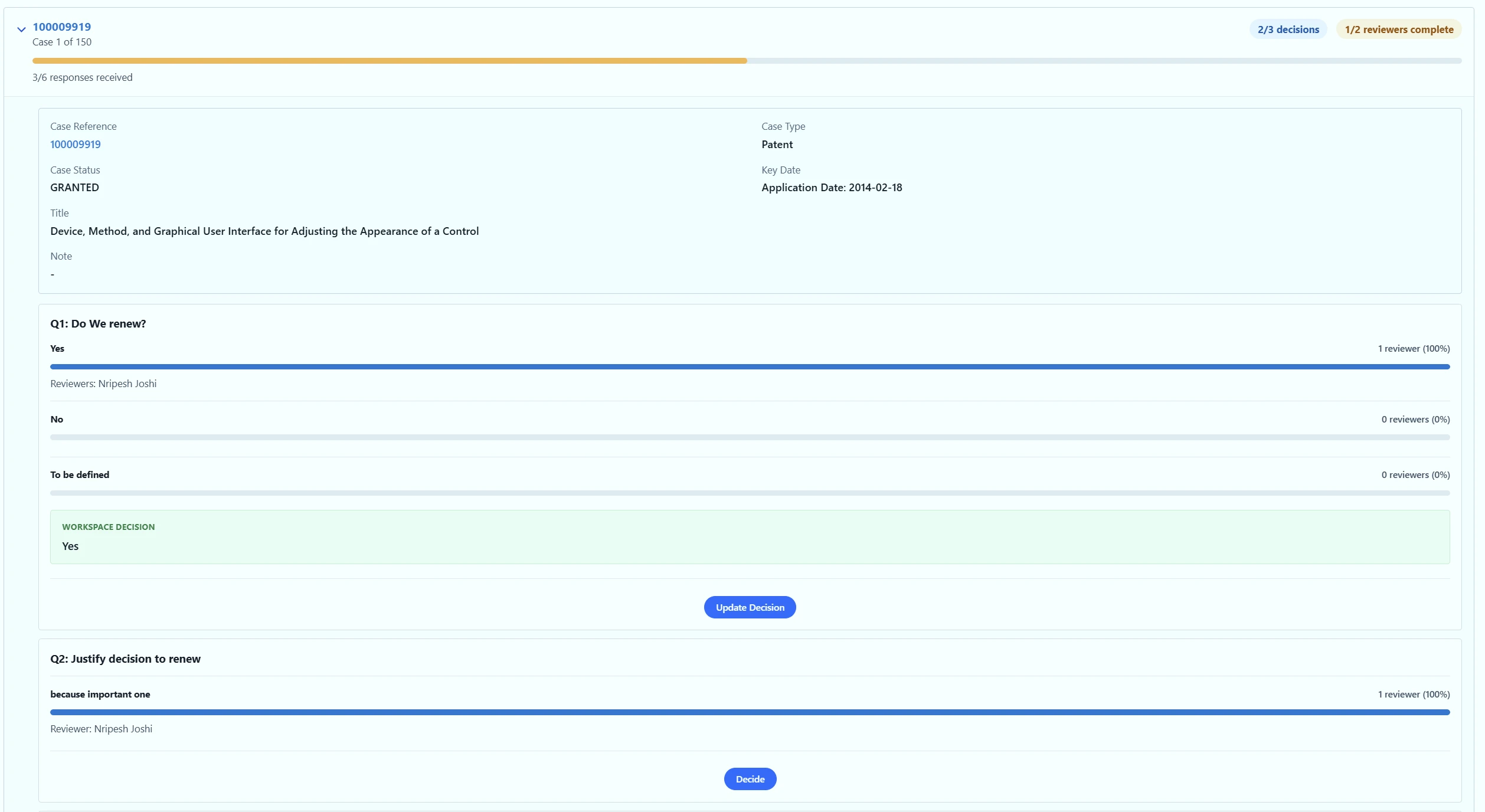
The Workspace Answers & Decisions page:
Reviewer participation status
Consolidated responses
Comparison of reviewer recommendations
Response statistics
Most common responses
This helps decision makers quickly identify consensus areas and conflicting opinions.
The decision maker can also search for specific cases or filter the list of cases by Type of Case, Answers Completion or Decisions Completion.
The tab Answers & Decisions is by default not visible For the Reviewers but the Decision Maker can decide to render it visible to them by checking the "Answers & Decisions Visibility" checkbox on the Workspace record.
8- Record the Final Decision
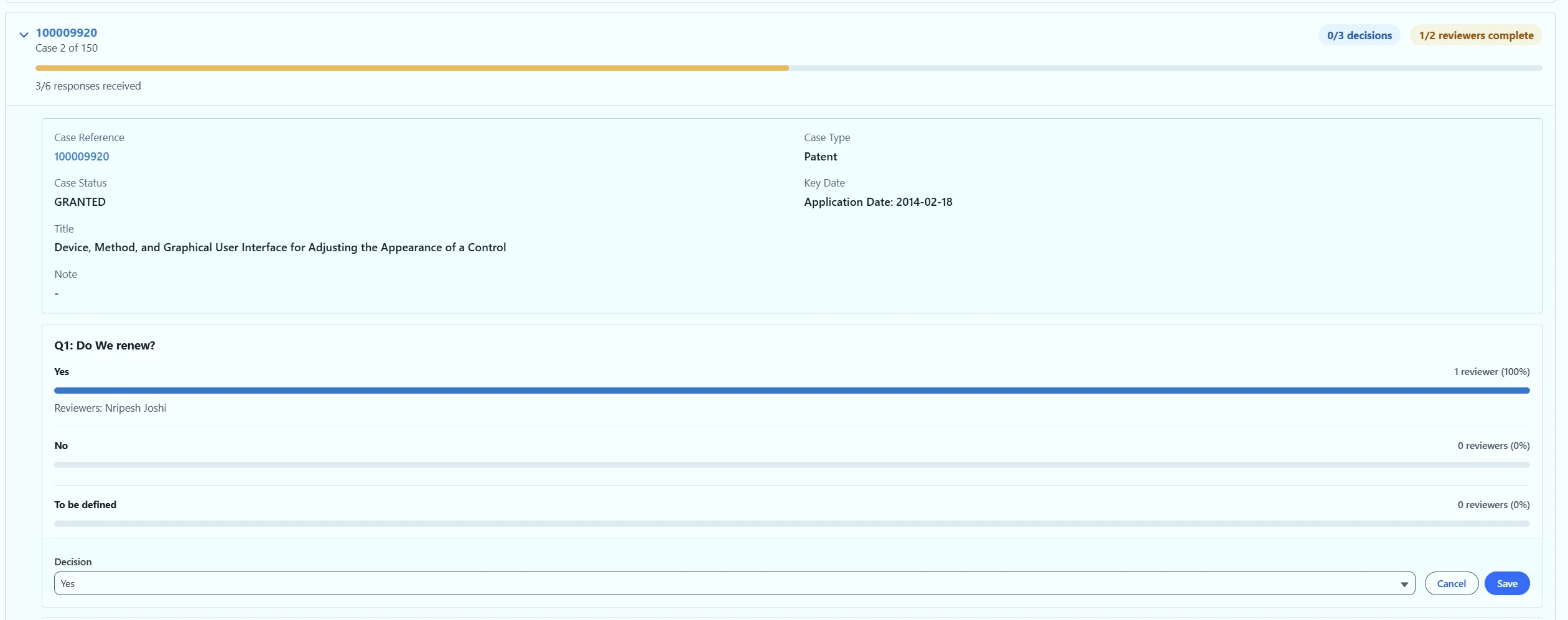
Once reviews are complete and even partially, the Decision Maker can record the final decision.
The final decision becomes part of the Workspace audit trail and remains linked to the reviewed cases.
For questions based on existing EC+ fields, approved decisions will directly update the underlying case information while maintaining full traceability of the change.
For an audit perspective, on the associate case updated by a decision on an existing EC+ field, we can see in the history sub tab which field was updated with a reference to the Workspace Id.

9- Duplicate an Existing Workspace
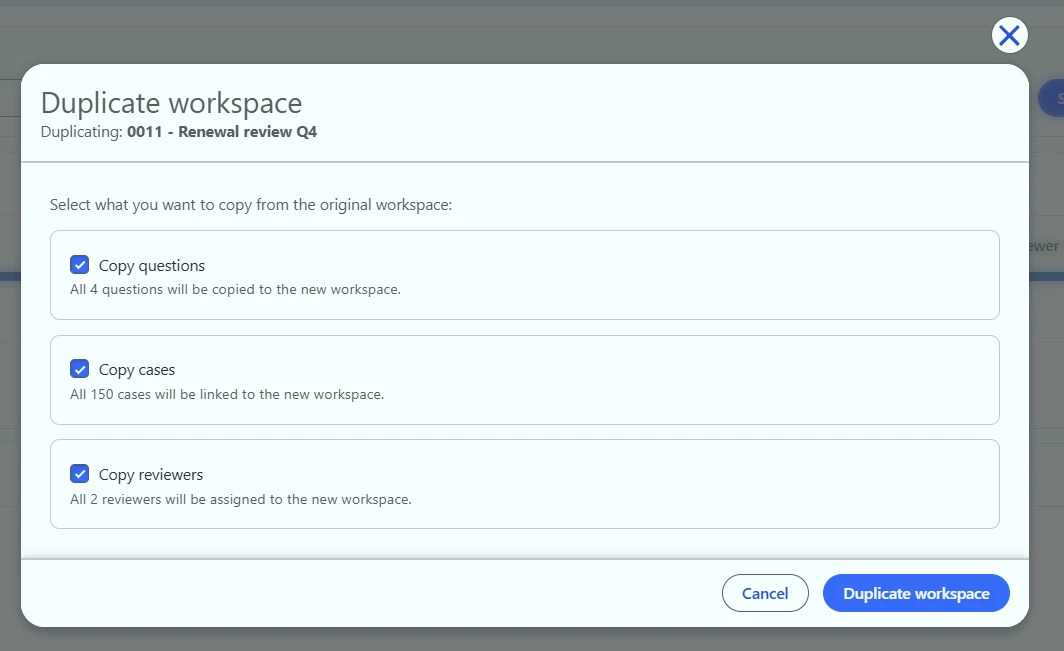
For recurring review processes, users can duplicate an existing Workspace using the "Duplicate" Button on the top right of the Workspace record.
When duplicating a Workspace, users can choose to copy:
Questions
Reviewer assignments
Associated cases
Historical responses, decisions, tasks, and notifications are not copied to ensure each Workspace starts with a clean review cycle.
10- Notifications
EC+ automatically keeps participants informed throughout the review process.
The Reviewers received notifications when:
A Workspace becomes active
He is assigned as Reviewer on an already Ongoing Workspace
New cases are added to an Ongoing Workspace
New questions are created to an Ongoing Workspace
Reminder notifications is manually trigger by the Decision Maker
A Workspace is closed
Notifications are available through both EC+ notification and email.