
New Features
Questel Service Portal v2 - Direct Project Creation
Overview
QSP V2 introduces an enhanced project creation experience that allows users to create projects directly in the Questel Service Portal without first creating an Estimate.
The new flow simplifies project creation, supports additional service types and filing scenarios, and provides a more flexible experience for managing jurisdiction, project, inventor, and deadline information.
QSP V2 also introduces Request Assistance, allowing users to request support when assistance is required during the project creation process.
This feature is available to Standard Users, Administrators, and Questel Administrators on Patent object.
Direct Project Creation
QSP V2 enables users to create a Project directly without going through the Estimate creation and conversion process.
Users can initiate a project request and provide the required information based on the selected service type and filing type.
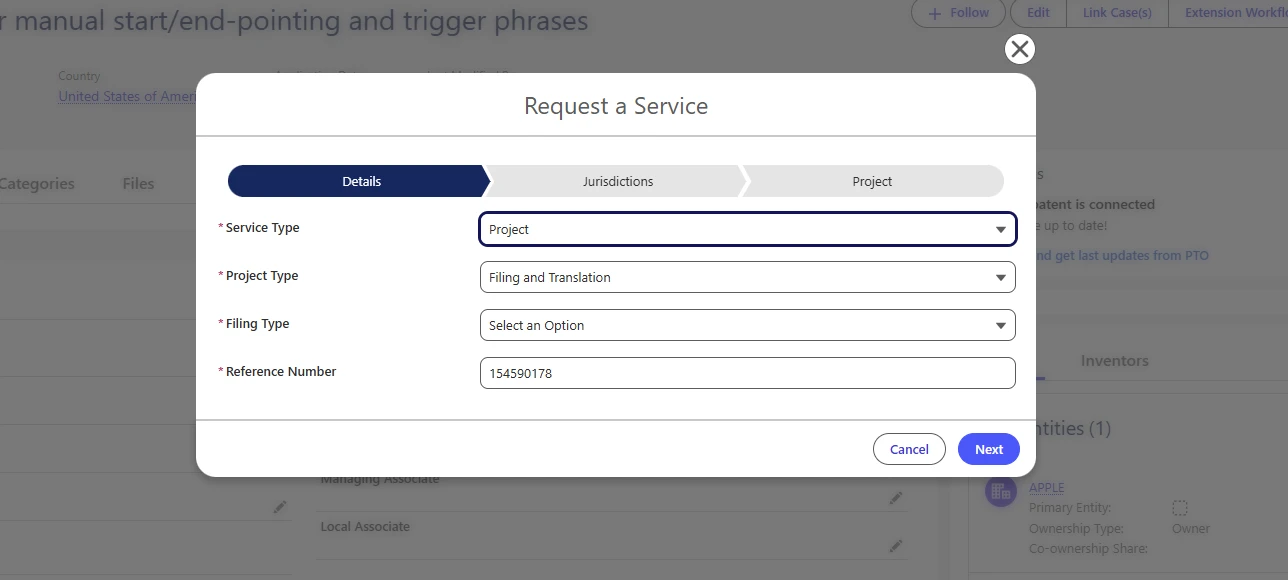
Supported Service Types
QSP V2 supports the following service types:
Filing & Translation
Translation Only
The Translation Only service type allows users to request translation services without requiring filing-related information.
The fields and screens displayed during project creation are dynamically adjusted based on the selected service type.
Filing Type
For Filing & Translation projects, users can select the applicable Filing Type.
The subsequent navigation and information required from the user are determined based on the selected filing type.
This allows QSP to provide a more targeted project creation experience while ensuring that only relevant information is requested.
Jurisdiction
Users can specify the relevant Jurisdiction(s) during the project creation process.
The jurisdiction information is used to determine the applicable filing or translation requirements and is associated with the resulting Project.
The available options and subsequent screens are dynamically presented based on the selected filing scenario.
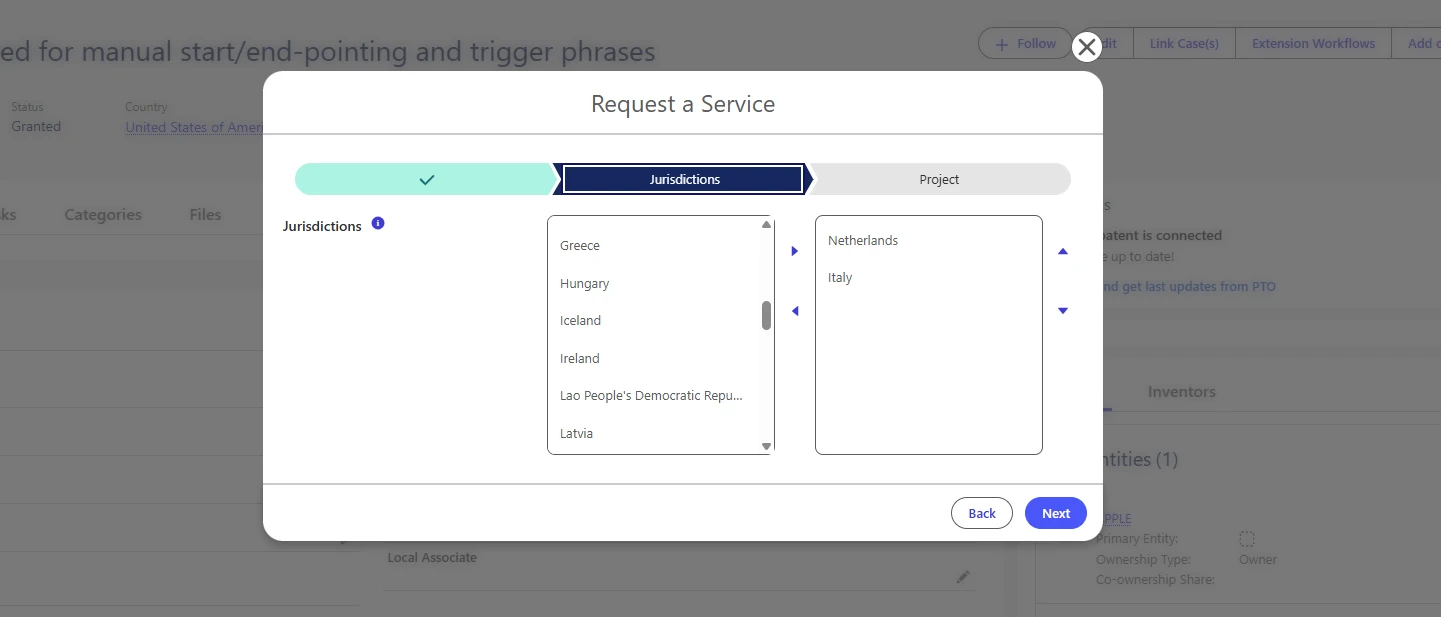
For applicable European Patent workflows, users can select Add Countries for EP Validation to specify the countries required for EP validation.
This allows the required validation countries to be captured directly as part of the request and associated with the resulting Project.
Project Details
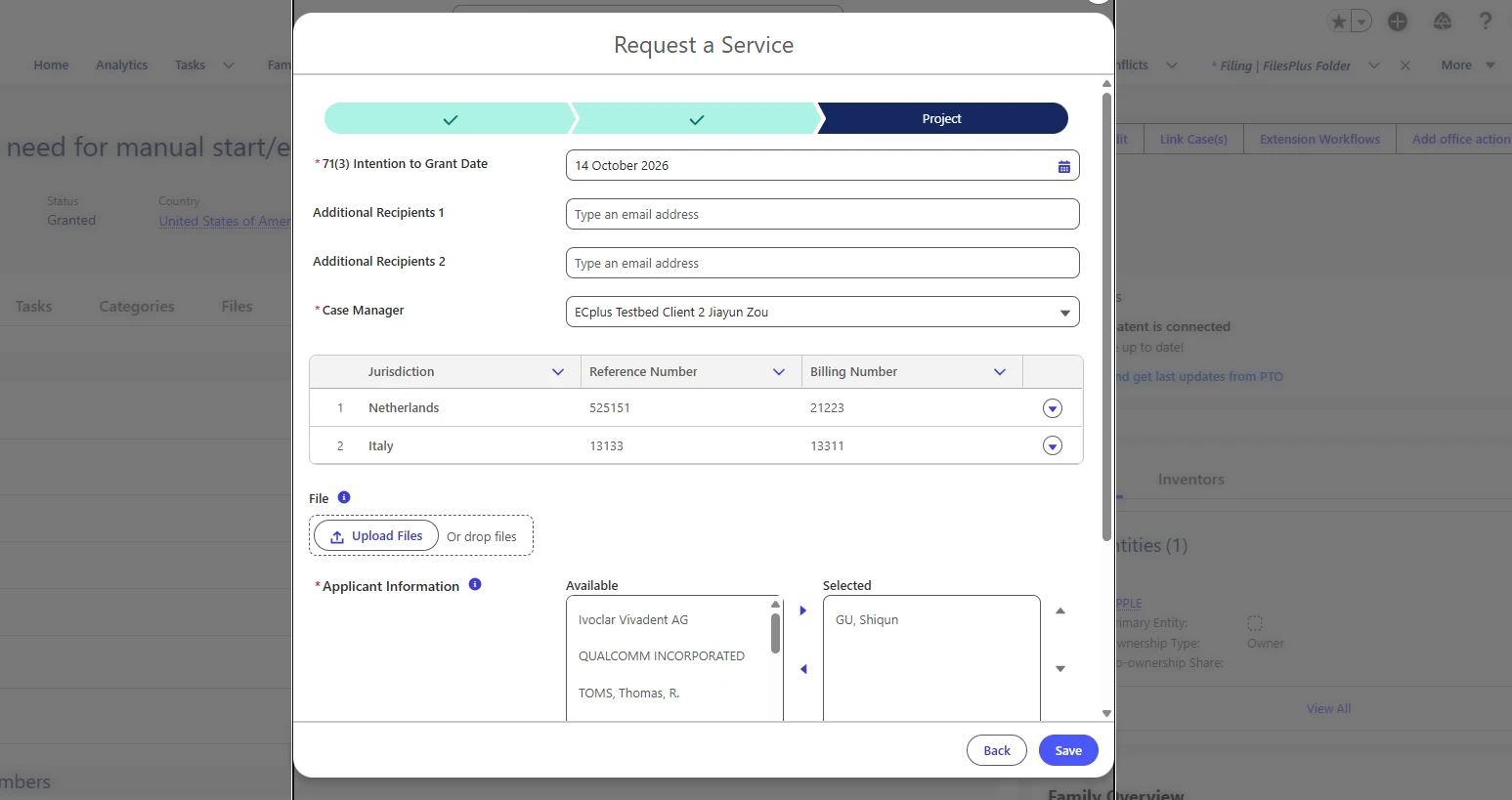
The Project Details screen allows users to provide the information required to create the Project.
Users can provide relevant project information, including the Project Title.
The information captured during the request process is carried forward to the resulting Project.
Requested Deadline
QSP V2 introduces support for capturing a Requested Deadline during Estimate and Project creation.
The requirement for the Requested Deadline varies depending on the selected service and filing scenario.
For example:
Translation Only Project – Requested Deadline is mandatory.
Translation Only Estimate – Requested Deadline is optional.
Filing & Translation Direct Filing / PCT National Projects – Requested Deadline is optional.
This allows users to specify a desired completion date where applicable while ensuring that mandatory deadline information is captured for applicable workflows.
Inventor Details
For applicable Direct Filing workflows, QSP V2 provides an Inventor Details section.
Users can provide the relevant inventor information as part of the project creation process.
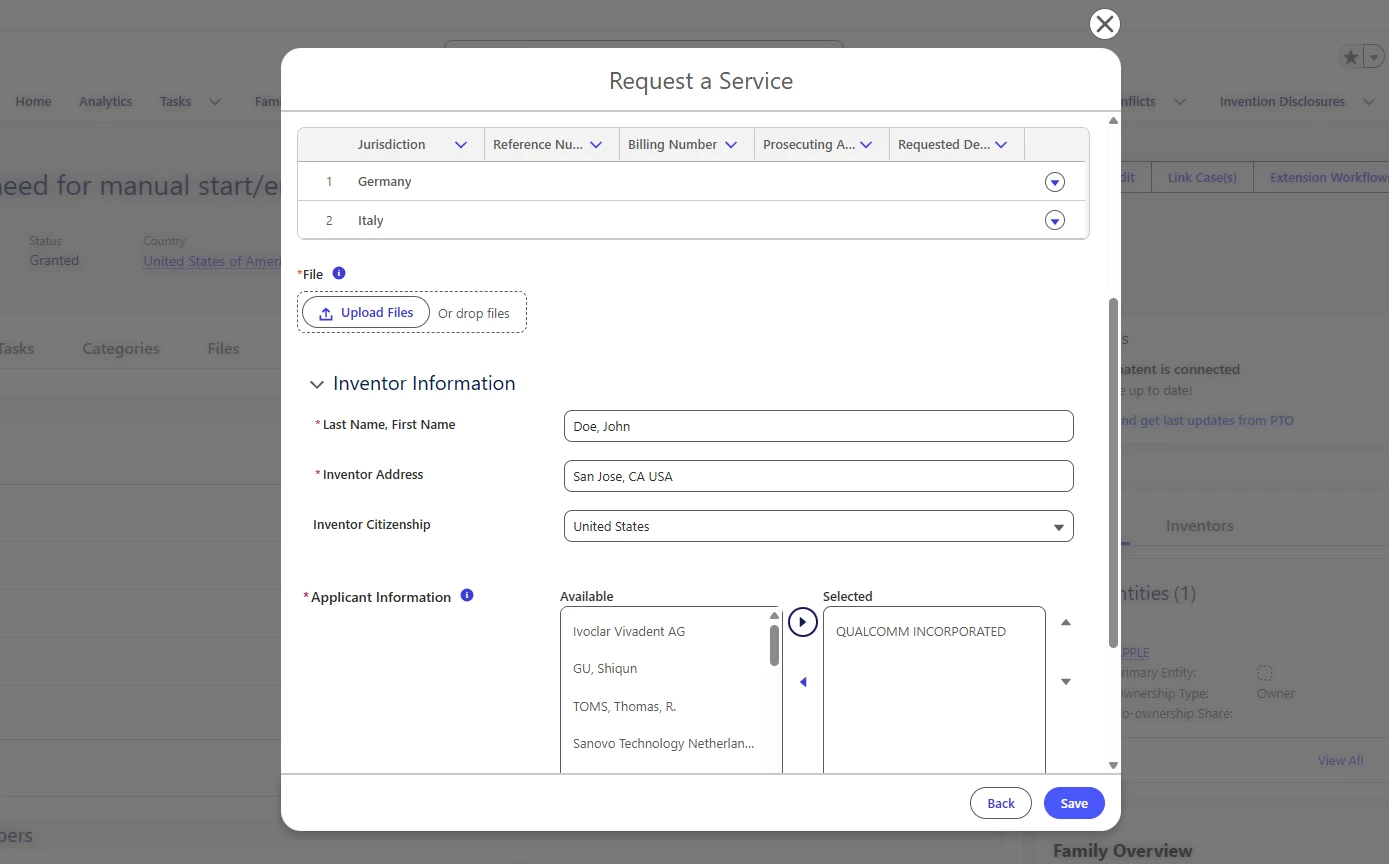
The captured inventor information is associated with the resulting Project.
Translation Only
QSP V2 introduces Translation Only as a supported service type.
Users can request translation services independently without selecting filing-related options.
The Translation Only workflow presents only the information relevant to the translation request, removing filing-specific steps that are not applicable.
This provides a simpler workflow for users who require translation services without filing services.
Updated Estimate Record Page
Overview
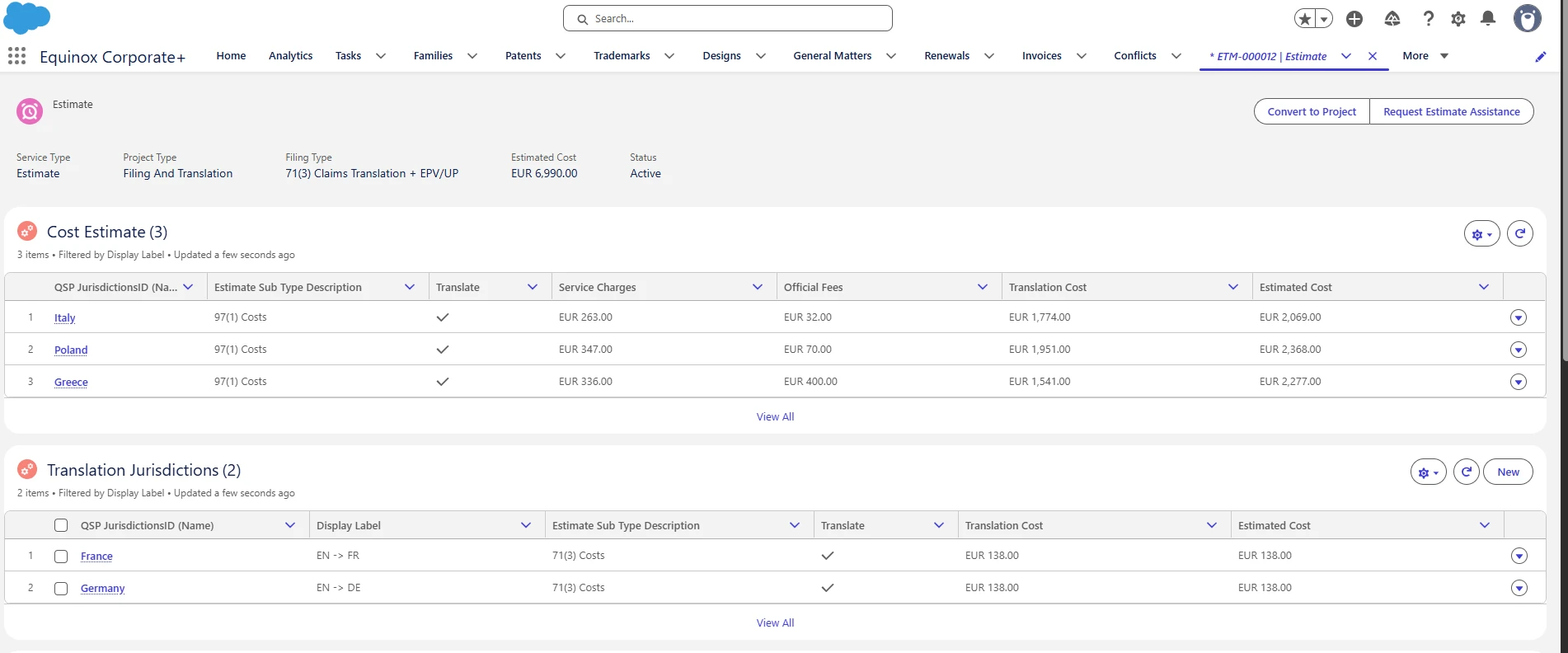
The Estimate Record Page has been enhanced to provide a clearer view of estimate costs by separating the cost information into dedicated sections based on the applicable Estimate Sub Type.
The updated layout now displays separate tables for:
97(1) Costs
71(3) Costs
This allows users to easily distinguish between the costs associated with each estimate type and provides a more structured view of the overall estimate.
97(1) Costs
The Cost Estimate section displays the costs associated with 97(1) requirements for the Estimate.
The table provides visibility into the cost details for each applicable jurisdiction, including:
Jurisdiction
Estimate Sub Type Description
Translate
Service Charges
Official Fees
Translation Cost
Estimated Cost
Users can review the estimated cost breakdown for each jurisdiction directly from the Estimate record page.
71(3) Costs
A separate Translation Jurisdictions section is available for 71(3) costs.
The table displays the applicable translation jurisdictions and their associated costs, including:
Jurisdiction
Display Label / Translation Language
Estimate Sub Type Description
Translate
Translation Cost
Estimated Cost
This separation makes it easier for users to identify translation-related costs associated with 71(3) requirements independently from the 97(1) costs.
Request Estimate Assistance
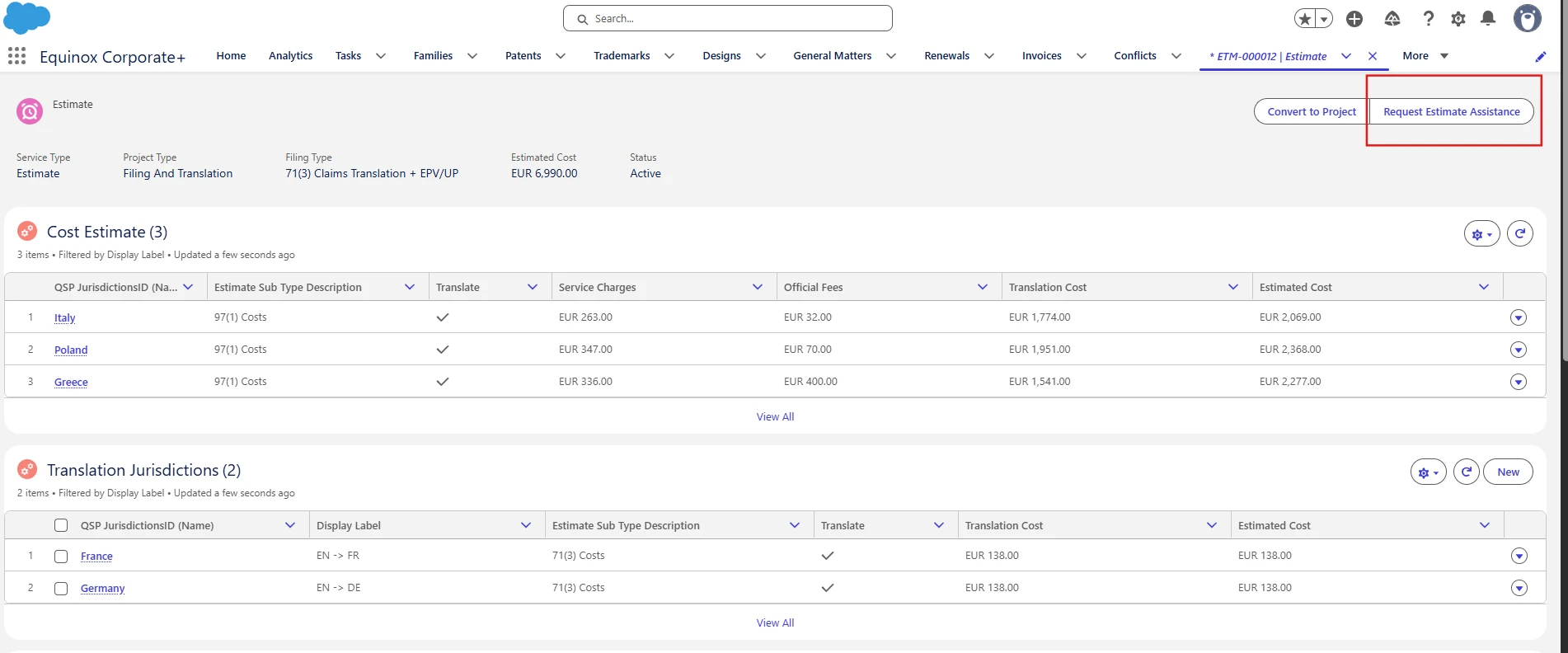
QSP V2 introduces a Request Estimate Assistance button for users who require support while preparing an Estimate.
When the user clicks Request Estimate Assistance, the system sends an email to patentorders@questel.com with the relevant Estimate details and request information.
The button is available alongside the Convert to Project action, providing users with a dedicated option to request assistance when required.
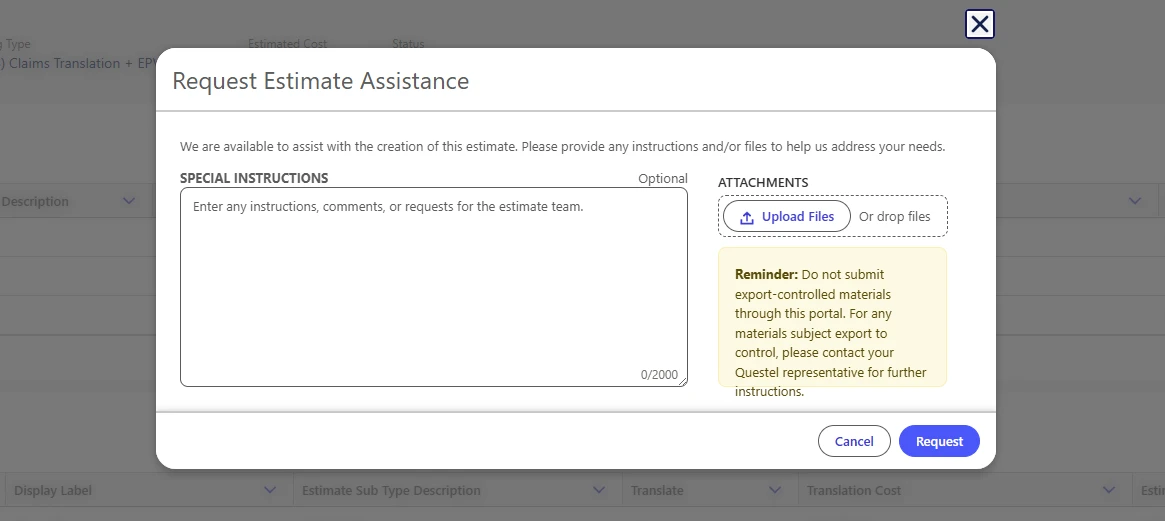
The request can then be reviewed and handled by the appropriate team, providing users with an alternative to abandoning the Estimate creation process when additional support is required.
Inventor Rewards - Extend Customization capabilities
Overview
A Trigger Condition is an optional expression on a Reward Rule that controls which inventors and which cases are eligible for a reward. You write it directly on the Reward Rule record. You don't need a developer or any extra configuration screen.
Condition filled in: the rule creates a reward only for the inventors for whom the condition is true.
The condition is checked for each inventor separately. If a family has three inventors and only two of them meet the condition, those two get a reward and the third doesn't.
The Specific Country field has been removed from Reward Rules. To limit a rule to certain countries, write that restriction in the Trigger Condition (see the examples below)
Where to find the field
Open a Reward Rule record (or create a new one from the Reward Rules tab).
Go to the Condition Logic section.
Enter your expression in the Trigger Condition field. It can hold up to 10,000 characters.
Save. The expression is checked when you save the record (see Validation when you save below)
Basic structure
Every expression starts with { and ends with } :
{ PatentRecord.eqcorporate__PatentCountryCode__c = 'US' }
An expression compares fields with values and combines those comparisons with logical operators.
What you can test
The condition can read three records:
Variable | Record | Typical use |
|---|---|---|
PatentRecord | The patent case that triggered the reward | Country, patent type, status, case manager, family information |
InventionRecord | The invention disclosure (for rules based on the Invention Disclosure Date) | Invention disclosure fields |
InventorRecord | The inventor's Contact record, checked one inventor at a time | Employment status, country of residence, nationality, division, record type |
You can use any field on these records. Refer to fields by their API name, for example eqcorporate_EmployeeStatus__c, not by their label.
Following relationships
To read a field on a related record, use dots. Relationship fields end in __r:
PatentRecord.eqcorporate__Family__r.eqcorporate__First_Filing_Date__c
InventorRecord.RecordType.DeveloperName
You can follow up to 5 relationships in one path.
Operators
Logical operators
Operator | Meaning |
|---|---|
&& | AND: both sides must be true |
|| | OR: at least one side must be true |
! | NOT: reverses the expression that follows |
NOT is evaluated first, then AND, then OR. Use parentheses to make your intent clear:
{ A && B || C } is read as (A && B) || C
{ A && (B || C) } is read as A && (B || C)
Comparison operators
Operator | Meaning | Works with |
|---|---|---|
= / != | Equals / not equals | Text, picklist, number, date, true/false |
< <= > >= | Less than / greater than | Number, date |
IN ('A','B') | Value is in the list | Text, picklist |
NOT IN ('A','B') | Value is not in the list | Text, picklist |
INCLUDES ('A') | Multi-select picklist contains the value | Multi-select picklist |
LIKE 'Bio%' | Text matches a pattern ( % = any characters) | Text |
IS NULL / IS NOT NULL | Field is empty / has a value | Any field |
Writing values
Type | How to write it | Example |
|---|---|---|
Text / Picklist | In single quotes | ‘Active’ |
Number | As is | 500 |
True / False | As is | true |
Date | YYYY-MM-DD in single quotes | ‘2020-01-01’ |
List | In parentheses, comma-separated, each value quoted | ('US', ‘ES’, ‘JP’) |
Relative dates
You can compare dates with today’s date using Salesforce date literals:
Literal | Meaning |
|---|---|
TODAY | Today’s date, at the time the reward is calculated |
LAST_N_DAYS:180 | Within the last 180 days |
NEXT_N_DAYS:30 | Within the next 30 days |
Other Salesforce (SOQL) date literals are also supported, such as THIS_YEAR and LAST_N_MONTHS:6..
Examples
Only US patents
{ PatentRecord.eqcorporate__PatentCountryCode__c = 'US' }
Only patents from a list of countries
{ PatentRecord.eqcorporate__PatentCountryCode__c IN ('US','EP','CN','JP') }
Only active employees
{ InventorRecord.eqcorporate__EmploymentStatus__c = 'Active' }
Exclude designs and trade secrets
{ PatentRecord.eqcorporate__Patent_Type__c NOT IN ('Design','Trade_Secret') }
Families first filed before 2020, US patents only
{ PatentRecord.eqcorporate__Family__r.eqcorporate__First_Filing_Date__c < '2020-01-01' && PatentRecord.eqcorporate__PatentCountryCode__c = 'US' }
Inventors living in Finland who are employees or contractors
{ InventorRecord.eqcorporate__Country_of_Residence__c = 'FI' && InventorRecord.eqcorporate__EmploymentStatus__c IN ('Active','Contractor') }
Active employees on families that are still alive
{ PatentRecord.eqcorporate__Family__r.eqcorporate__Approved__c = true && InventorRecord.eqcorporate__EmploymentStatus__c = 'Active' }
Only inventors with a specific contact record type
{ InventorRecord.RecordType.DeveloperName = 'Group_Contact' }
Active employees, or anyone on French-managed cases
{ InventorRecord.eqcorporate__EmploymentStatus__c = 'Active' || PatentRecord.eqcorporate__Case_Manager1__r.Name = 'French' }
Validation when you save
When you save a Reward Rule, the system test-runs the Trigger Condition. If the expression isn't valid, the record isn't saved and an error message tells you what to fix. Common causes:
Using double curly braces{{ ... }} instead of { ... }
A field API name that is misspelled or doesn't exist
A missing single quote around a text or date value
Unbalanced parentheses
Following more than 5 relationships in a single path
Best Practices
Start simple. Write and save one comparison, then add more.
Test on a real family before go-live. Fill in the milestone date on a test family, wait for the daily reward calculation or execute the batch manually, then check which inventors received a reward.
Make sure the data is filled in. A condition on Employment Status only works if that field is filled in on the inventors' Contact records. When a field is empty, a comparison like = 'Active' is false, so the inventor is excluded.
Avoid overlapping rules. Every enabled rule that matches creates its own reward. Make sure two rules on the same Base Date don't both match the same inventors, unless both rewards should be paid.
Name rules clearly, so the condition is easy to guess from the rule name (for example "Grant – US – Active employees")
Frequently Asked Questions
What happens if I leave the Trigger Condition empty?
The rule applies to every eligible inventor, with no restriction, which is the same behaviour as before this field existed
How do I restrict a rule to one country now that Specific Country is gone?
Add a country condition, for example
{ PatentRecord.eqcorporate__Patent_Country_Code__c = 'DE' }
If the rule had a Specific Country before, rewrite that restriction as a Trigger Condition.
Can I combine a Trigger Condition with Inventor Profiles?
Yes. The Trigger Condition first decides whether an inventor is eligible. Eligible inventors are then matched against the rule's Inventor Profiles to find the amount.
Does the condition apply to the whole family or to each inventor?
To each inventor. The patent and family conditions are the same for all inventors of the case, but inventor conditions are checked one inventor at a time.
Where do I find a field's API name?
Ask your administrator, or look it up in Salesforce Setup → Object Manager → the object (Patent, Contact, Invention Disclosure) → Fields & Relationships.
Or with the Inspector plugin → Show All data
Does changing a condition update rewards that already exist?
No. The condition is used only when new rewards are created. Rewards that already exist aren't changed
Workspaces
Overview
The Workspaces feature enables IP teams to manage collaborative decision-making directly within EC+.
Workspaces provide a dedicated area where a Decision Maker can gather input from multiple stakeholders, review responses, and record a final decision on one or more IP assets. Instead of using email chains and spreadsheets outside the system, all discussions, responses, and decisions remain linked to the relevant cases in EC+.
Create a Workspace
Decision Makers can create a Workspace to initiate a review process.
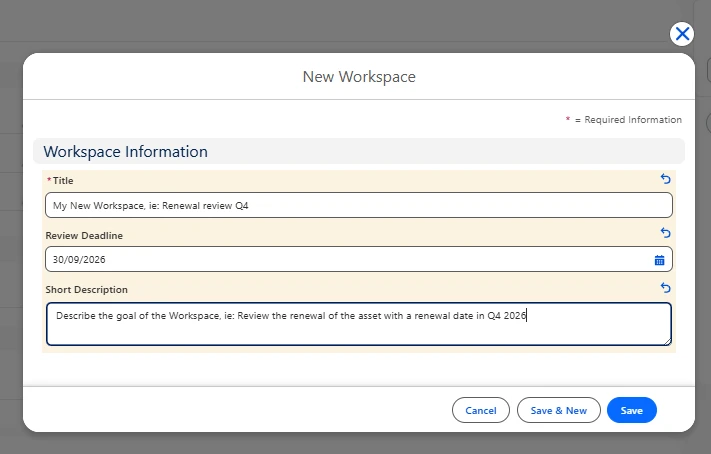
When creating a Workspace, users can define:
Workspace name
Description
Review deadline
Reviewers
Associated IP records
Each Workspace receives a unique reference and is initially created in Draft status.
To create a Workspace:
Navigate to Workspaces.
Click New Workspace.
Enter the Workspace details.
Save the Workspace.
Associate Cases
Workspaces need to be linked to IP assets under review.
Users can associate one or multiple cases, including:
Patents
Families
Trademarks
Designs
Invention Disclosures
General Matters
Renewals
Conflicts
Third Party Rights
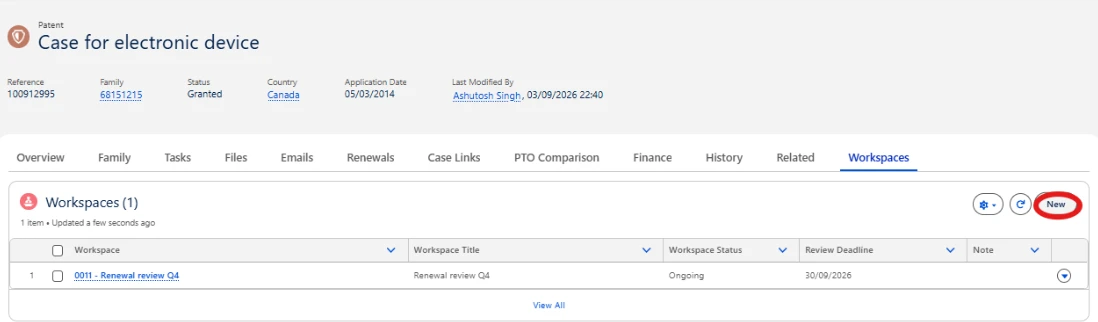
Cases may be added directly from the record page of a case
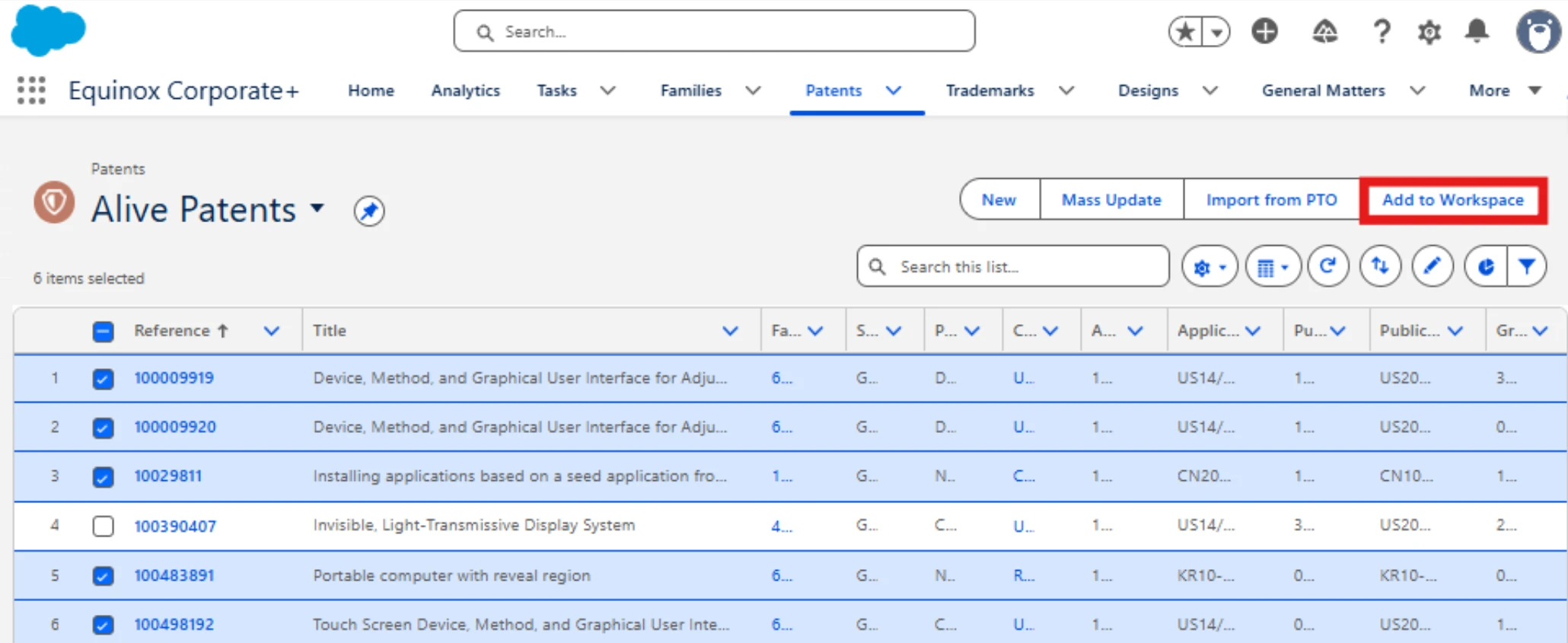
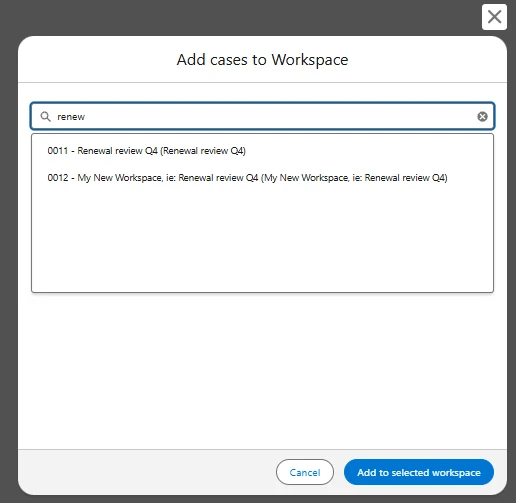
Cases may also be added through these 9 objects list views using bulk actions.
Configure Questions
Decision Makers can create questions to collect structured feedback from reviewers.
Supported question types include:
Free Text Questions
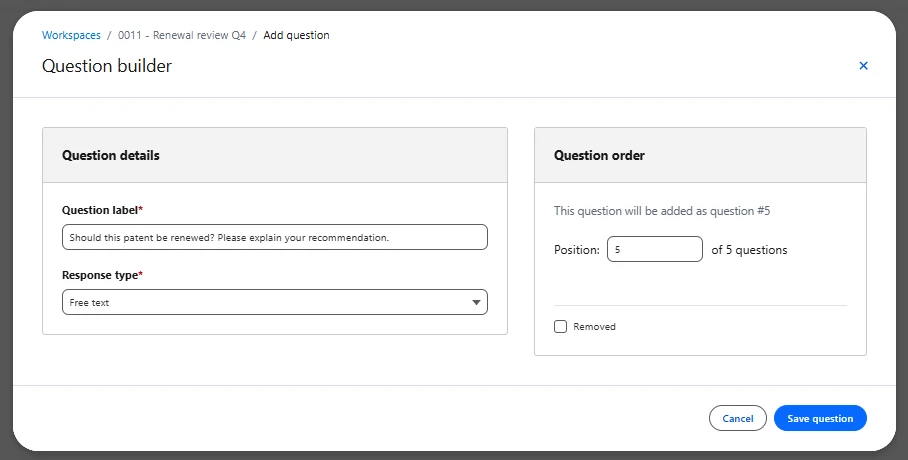
Allow reviewers to provide detailed comments and recommendations.
Example:
Should this patent family be renewed? Please explain your recommendation.
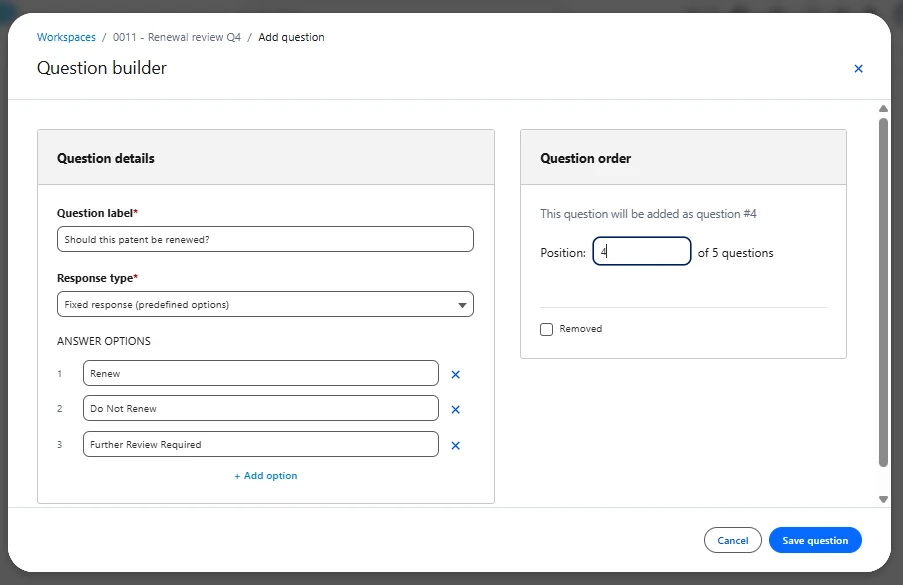
Fixed Response Questions
Allow reviewers to select predefined answers.
Example:
Renew
Do Not Renew
Further Review Required
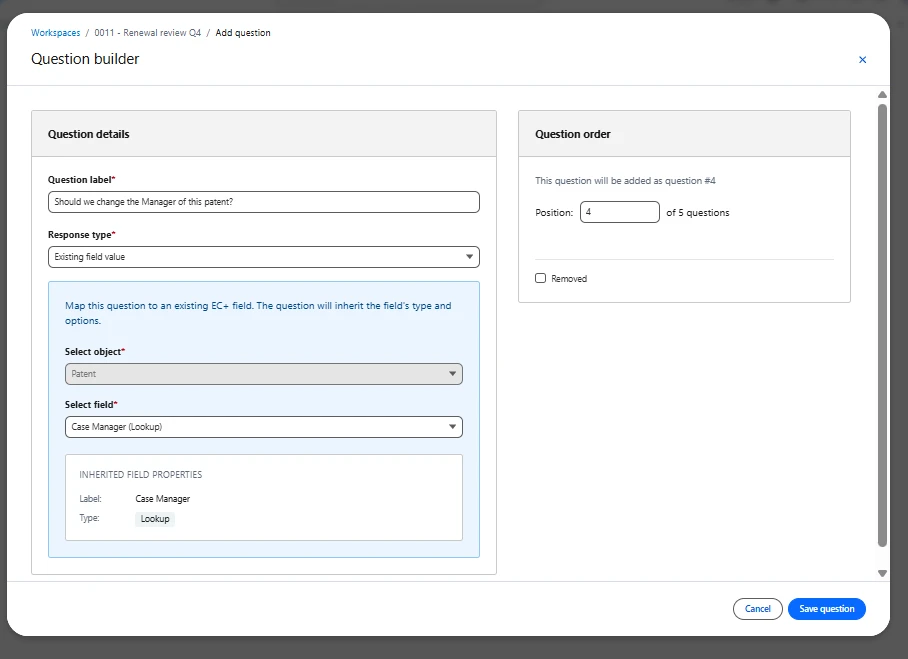
Existing Field Questions
Questions can also display values from existing EC+ fields, providing Reviewers with current portfolio information while collecting recommendations.
Assign Reviewers
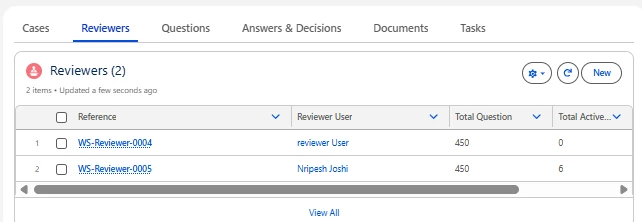
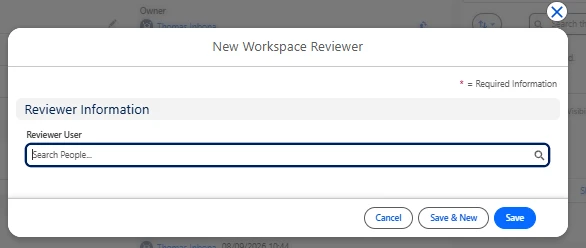
Reviewers can be added directly to the Workspace.
Once assigned, reviewers receive access to the Workspace once it is set to Ongoing Status and can provide their responses through a dedicated interface.
Decision Makers can:
Add reviewers
Remove reviewers
Track participation
Monitor completion progress
Workspace status management
A Workspace can be in 3 different status: Draft, Ongoing or Closed.
Draft Status
At the creation the workspace is set to ‘Draft’ status which allows the Decision Maker to configure it: add cases, questions and reviewers and even delete those linked records.
In draft Status, the reviewers can not yet see and access to the Workspace (Will be the case only when its moves to ‘Ongoing’ status.
The Decision Maker must have at least one linked case, one question and one reviewer to be able to change the status to ‘Ongoing’
Ongoing Status
As soon as the Decision Maker changes the Workspace status to ‘Ongoing’, the reviewers are notified, get access to it and can start to answer the questions.
For an Audit perspective, in Ongoing status, the linked Cases, Questions or Reviewers cannot be deleted anymore but the Decision Maker can mark them as removed to exclude them from the Workspace and from the answering process.
Closed Status
The decision Maker can anytime decide to close his Workspace. The Workspace becomes in read only and nothing can be updated on it for audit perspective.
The only action allowed is to clone the closed workspace in order to create and setup a new one.
Submit Responses
Reviewers access assigned Workspaces from the tab "Workspace" in the navigation bar in EC+.
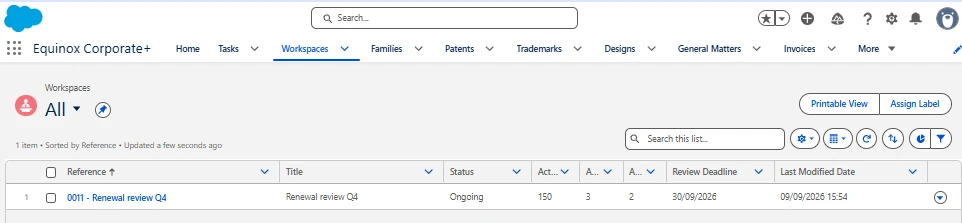
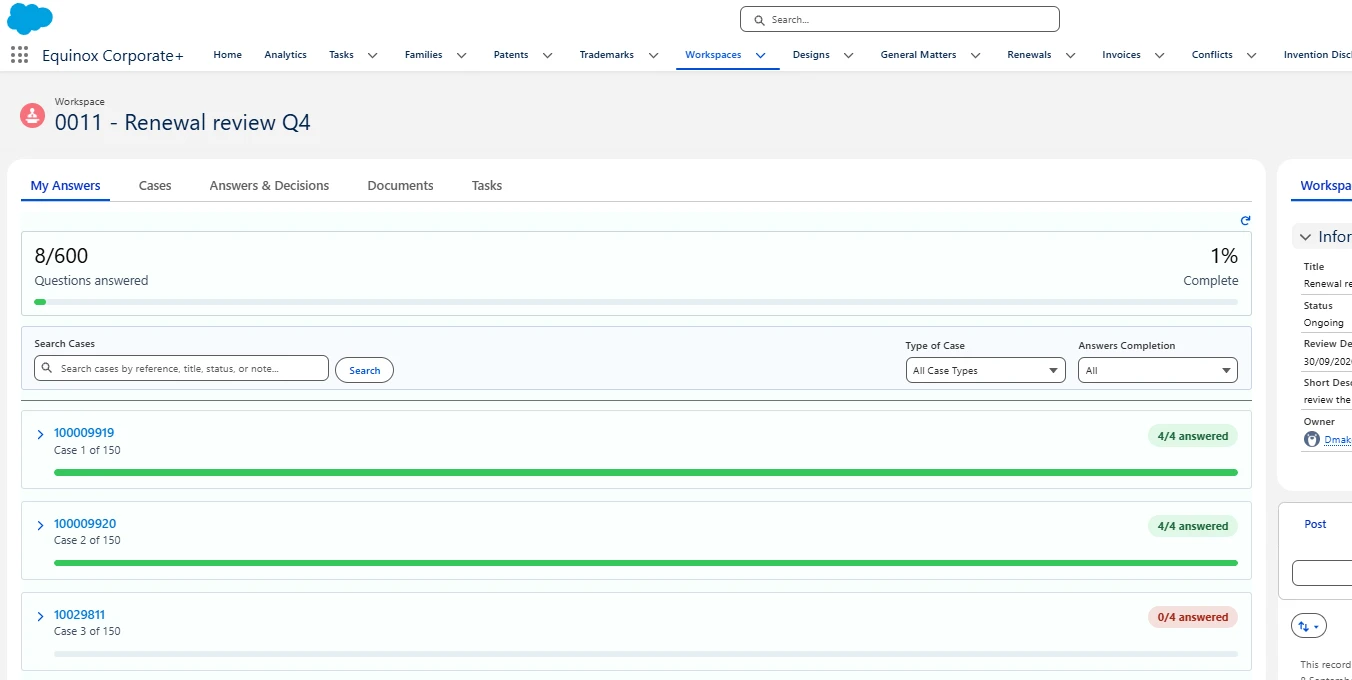
The My Answers view allows reviewers to:
Review assigned cases
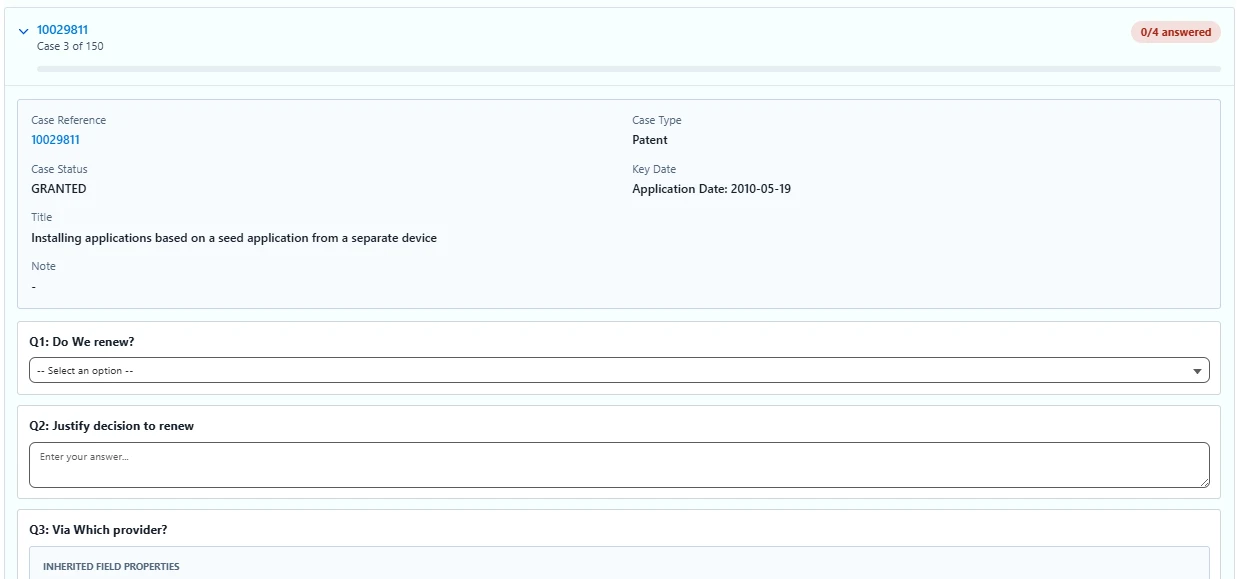
Answer questions
Update responses
Track completion status
The Reviewer can search for specific cases or filter the list of cases by Type of Case or Answers Completion
Responses must be saved case by case and remain associated with the reviewed case and Workspace.
Review Results
As responses are submitted, Decision Makers can monitor participation and analyze feedback.
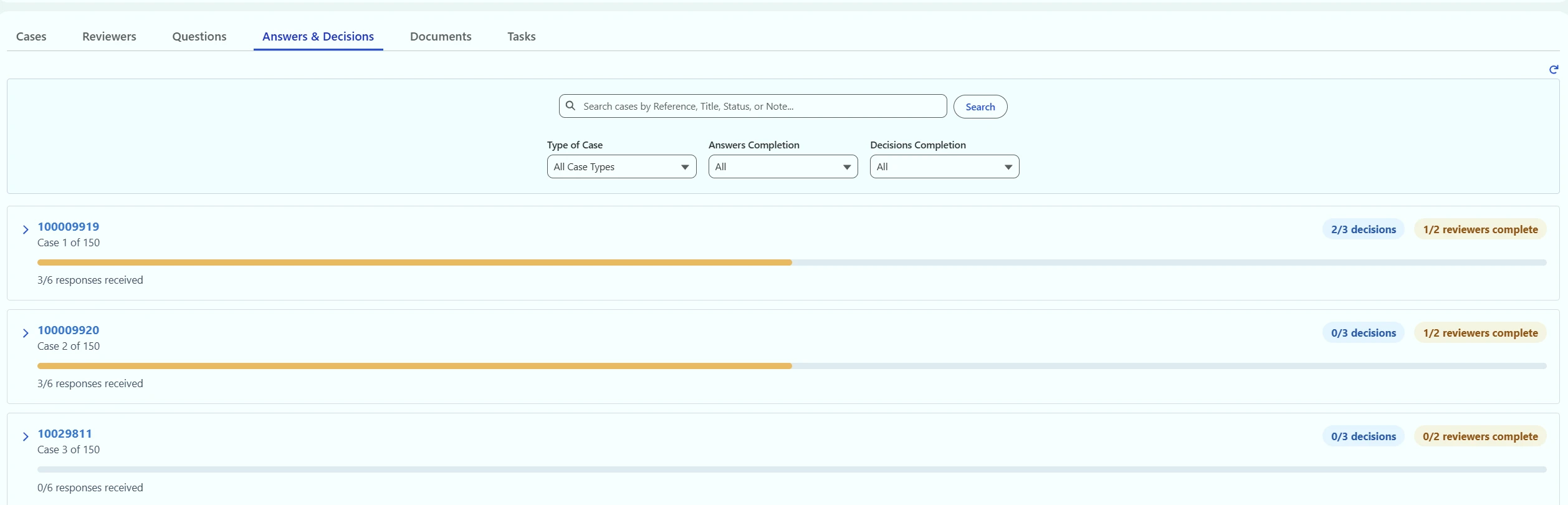
The Workspace Answers & Decisions page:
Reviewer participation status
Consolidated responses
Comparison of reviewer recommendations
Response statistics
Most common responses
This helps decision makers quickly identify consensus areas and conflicting opinions.
The decision maker can also search for specific cases or filter the list of cases by Type of Case, Answers Completion or Decisions Completion.
The tab Answers & Decisions is by default not visible For the Reviewers but the Decision Maker can decide to render it visible to them by checking the "Answers & Decisions Visibility" checkbox on the Workspace record.
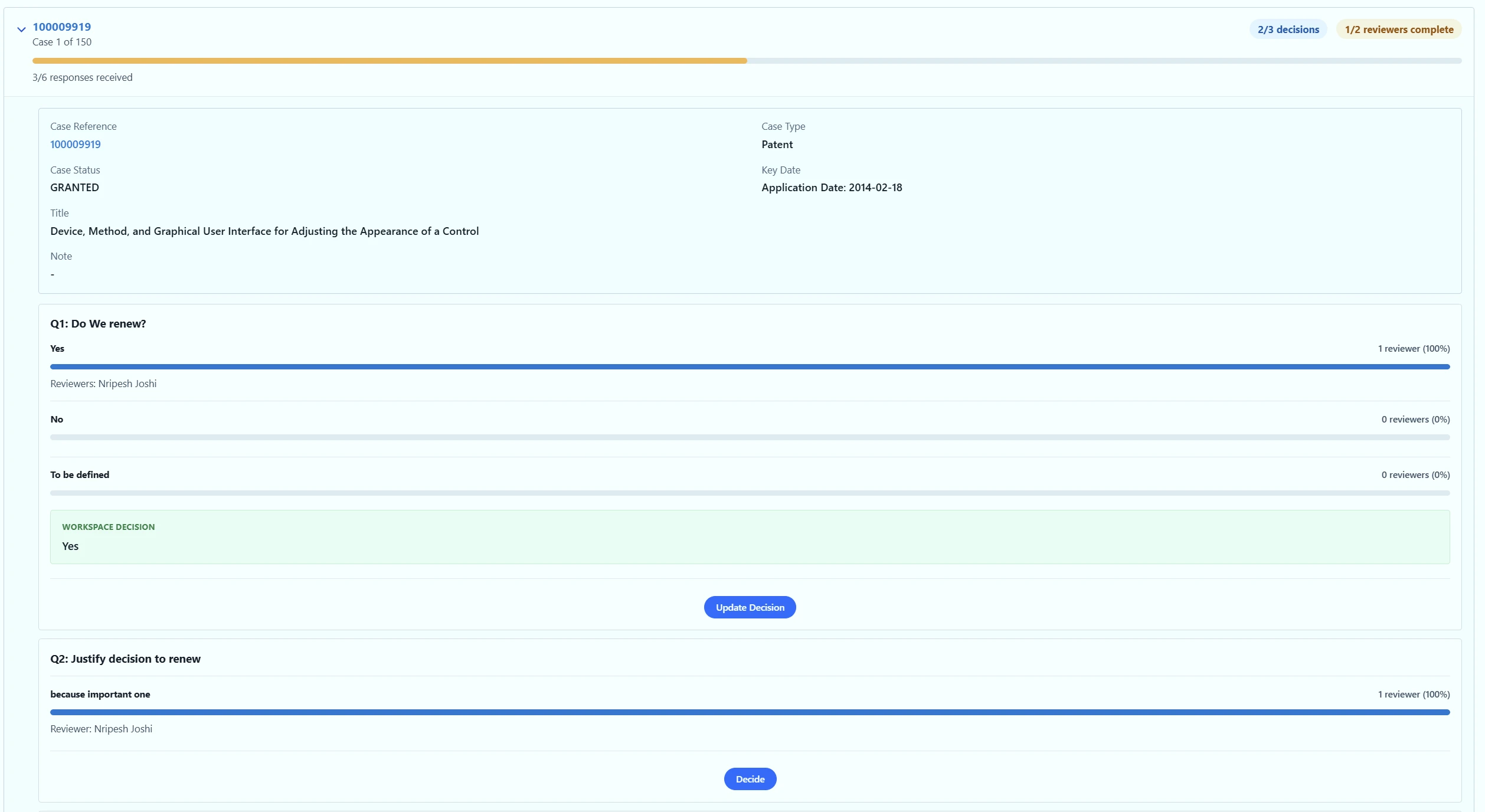
Record the Final Decision
Once reviews are complete and even partially, the Decision Maker can record the final decision.
The final decision becomes part of the Workspace audit trail and remains linked to the reviewed cases.
For questions based on existing EC+ fields, approved decisions will directly update the underlying case information while maintaining full traceability of the change.
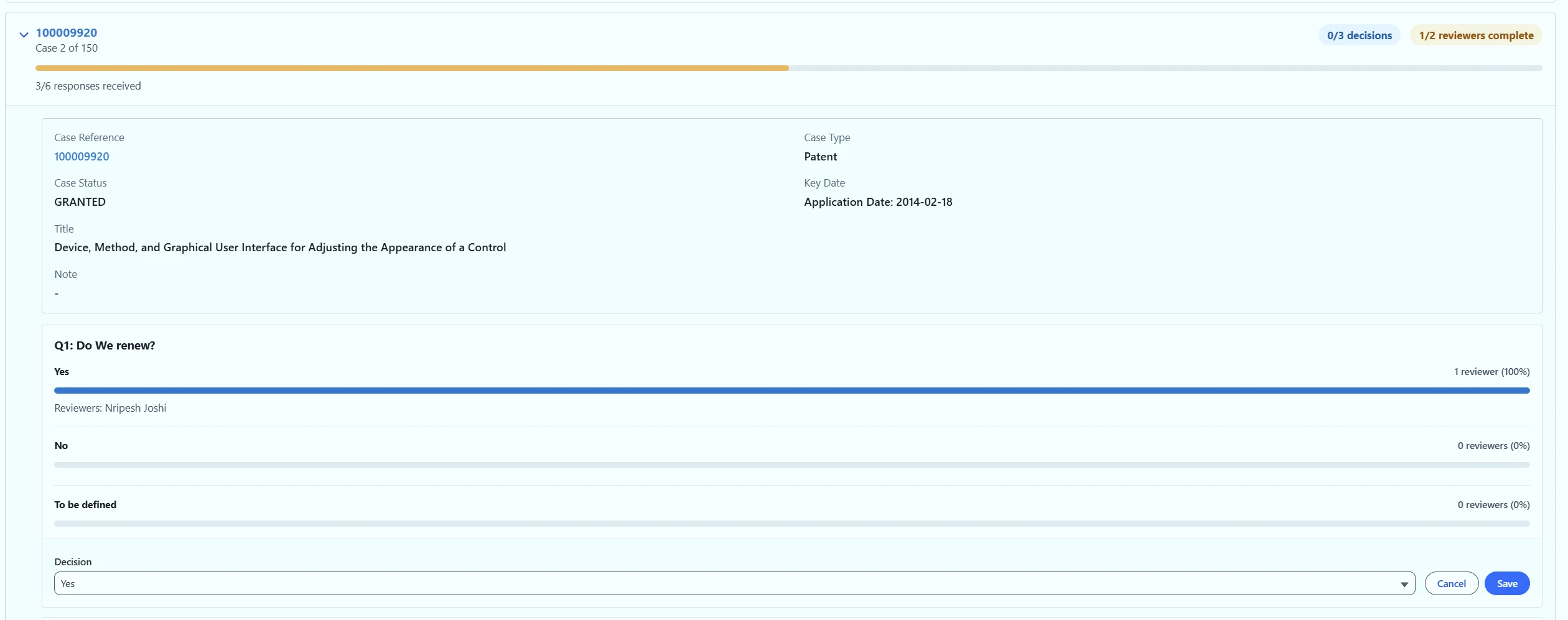
For an audit perspective, on the associate case updated by a decision on an existing EC+ field, we can see in the history sub tab which field was updated with a reference to the Workspace Id.

Duplicate an Existing Workspace
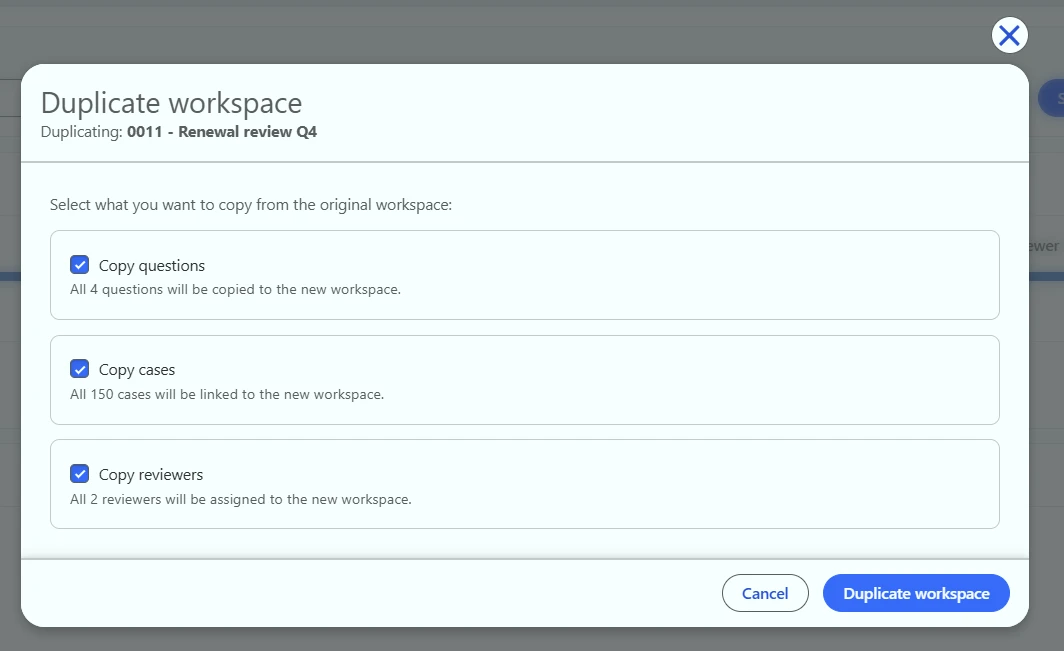
For recurring review processes, users can duplicate an existing Workspace using the "Duplicate" Button on the top right of the Workspace record.
When duplicating a Workspace, users can choose to copy:
Questions
Reviewer assignments
Associated cases
Historical responses, decisions, tasks, and notifications are not copied to ensure each Workspace starts with a clean review cycle.
Notifications
EC+ automatically keeps participants informed throughout the review process.
The Reviewers received notifications when:
A Workspace becomes active
He is assigned as Reviewer on an already Ongoing Workspace
New cases are added to an Ongoing Workspace
New questions are created to an Ongoing Workspace
Reminder notifications is manually trigger by the Decision Maker
A Workspace is closed
Notifications are available through both EC+ notification and email.
DMS v4 - Admin predefined folder
Overview
The Predefined Folders feature enables Administrators to configure standardized folder structures for supported business objects in FilesPlus.
Once configured, the system automatically creates the applicable predefined folders for new records and synchronizes newly added folder configurations with applicable existing records. This provides users with a consistent folder structure for organizing documents without requiring them to manually create folders.
The feature also maintains the integrity of configured folder hierarchies by preventing administrators from deleting or deactivating parent folders that have child folder configurations.
This feature is available for Administrators and Questel Administrators.
Supported Objects
Predefined folder configurations can be created for the following business objects:
Patent
Trademark
Design
Family
General Matter
Conflicts
Third Party Right
Task
Invoice
Reference
Invention Disclosure
Renewal
Configure Predefined Folders
Administrators can create and manage predefined folder configurations through the FilesPlus Folder object.
Each configuration represents a folder that will be automatically created for the selected business object.
To configure a predefined folder:
Navigate to the FilesPlus Folder configuration.
Click New.
Select the required Object.
Enter the Folder Name.
Select a Record Type, where applicable.
Optionally select a Parent Folder to establish a folder hierarchy.
Set the configuration to Active.
Save the configuration.
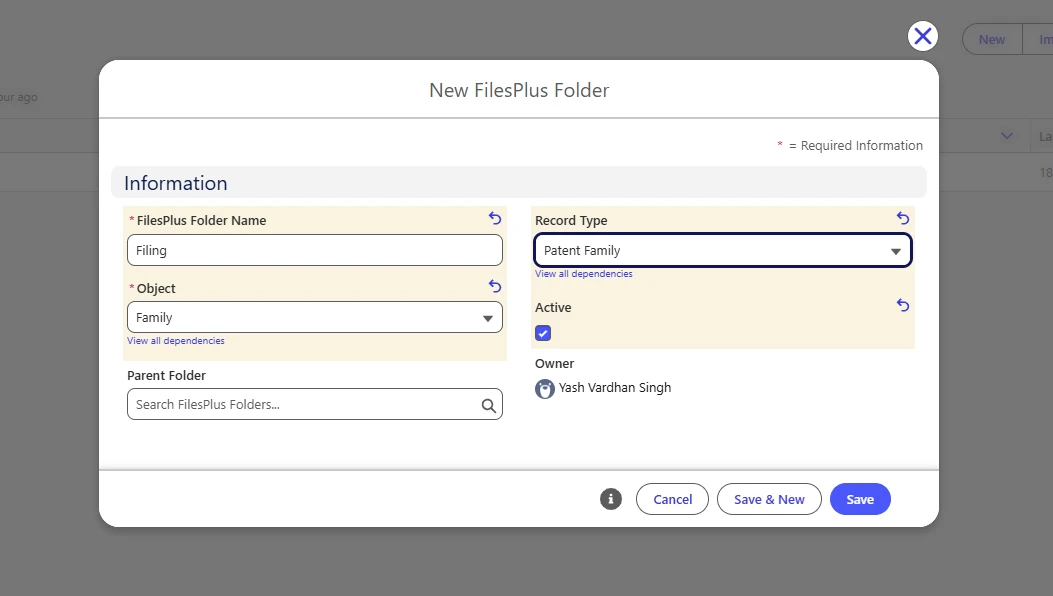
The Record Type field is displayed only for objects that support multiple record types. For objects with a single record type, the field remains hidden.
Hierarchical Folder Structure
Administrators can create multi-level folder structures by using the Parent Folder field to associate a predefined folder with an existing parent folder.
For example, an Administrator could configure the following folder hierarchy for a Patent:
Filing
Application Forms
Filing Receipts
Prosecution
Office Actions
Responses
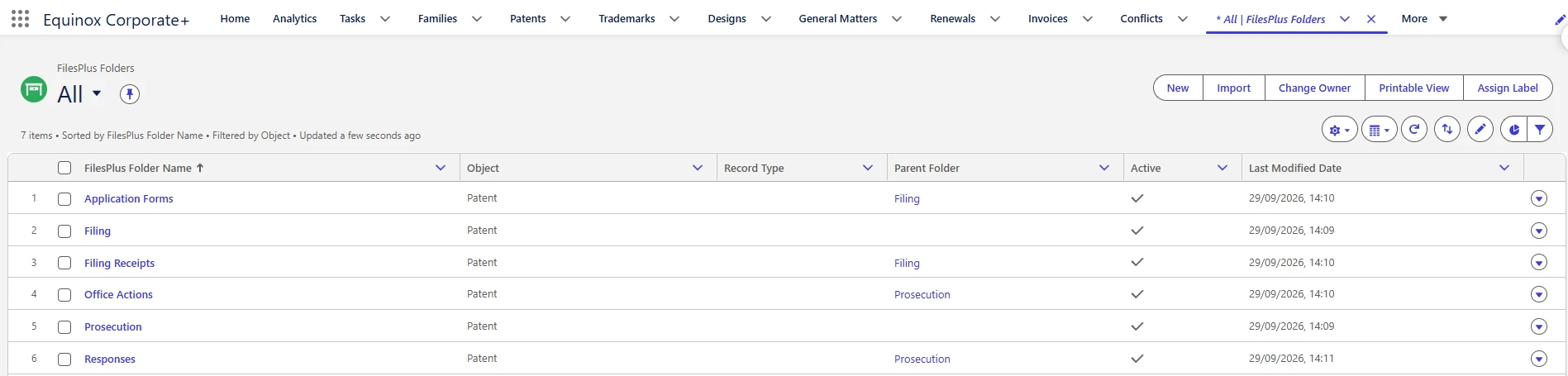
When the folders are automatically created, the system follows the configured hierarchy by creating the parent folders first, followed by their associated child folders. This ensures that the folder structure configured by the Administrator is consistently maintained across applicable records.
Automatic Folder Creation for New Records
When a new record is created for a supported business object, FilesPlus automatically identifies the applicable predefined folder configurations and creates the corresponding folders.
The system:
Identifies the object of the newly created record.
Determines the Record Type, where applicable.
Retrieves the active predefined folder configurations matching the Object and Record Type.
Creates the folders according to the configured parent-child hierarchy.
Displays the created folders in the Files tab of the FilesPlus component.
Only predefined folders with Active = True are automatically created.
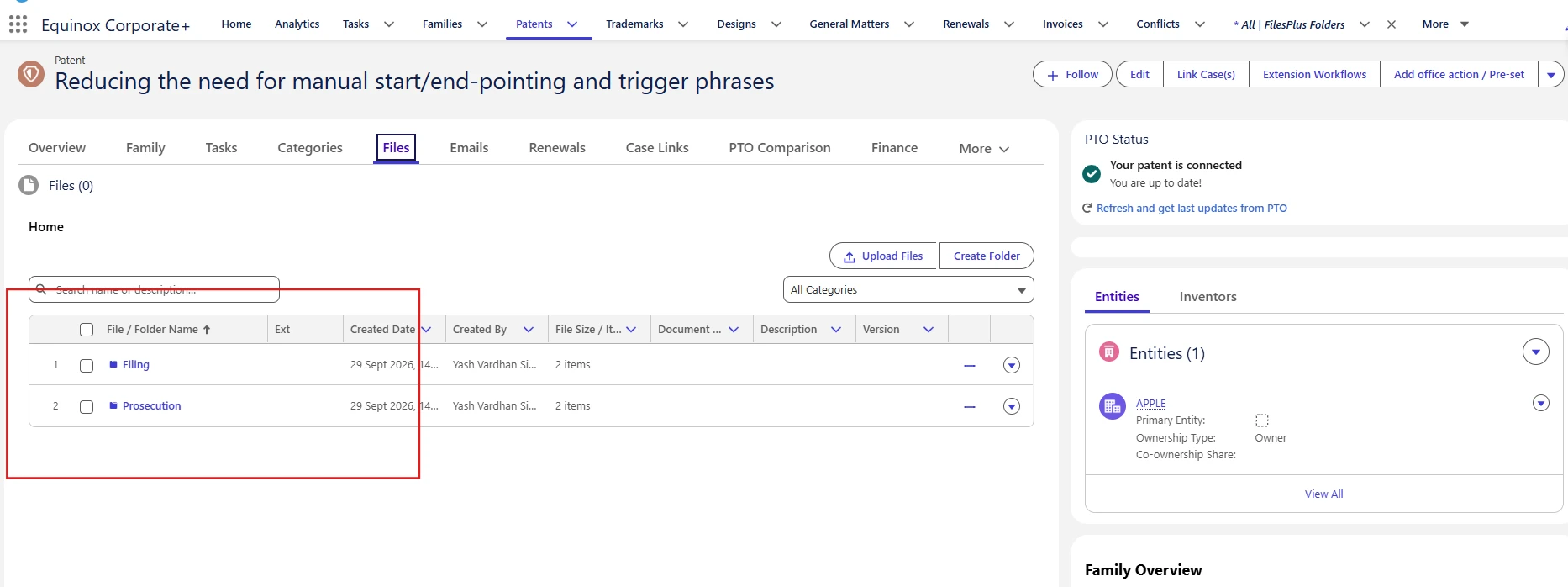
If no predefined folder configuration exists for the selected Object or Record Type, no folders are created and FilesPlus continues to behave as it does today.
Synchronizing New Folders with Existing Records
When a new predefined folder configuration is created and activated, the system automatically synchronizes the new folder with existing applicable records.
The system identifies existing records matching the configured Object and Record Type and creates the predefined folder where it does not already exist.
During synchronization:
Existing folders are not recreated.
Existing folders are not modified or overwritten.
Folders intentionally deleted at the record level are not recreated.
The configured parent-child hierarchy is preserved.
This ensures that existing records receive newly configured folders while preserving any folder-level changes that users have already made.
Working with Predefined Folders
Automatically created folders behave in the same way as manually created folders within FilesPlus.
Users can use the existing FilesPlus functionality and permissions to:
Upload documents.
Browse folders and documents.
Download documents.
Manage documents.
Navigate through the predefined folder hierarchy.
No additional user action is required to create the configured folders.
Protecting Parent Folder Configurations
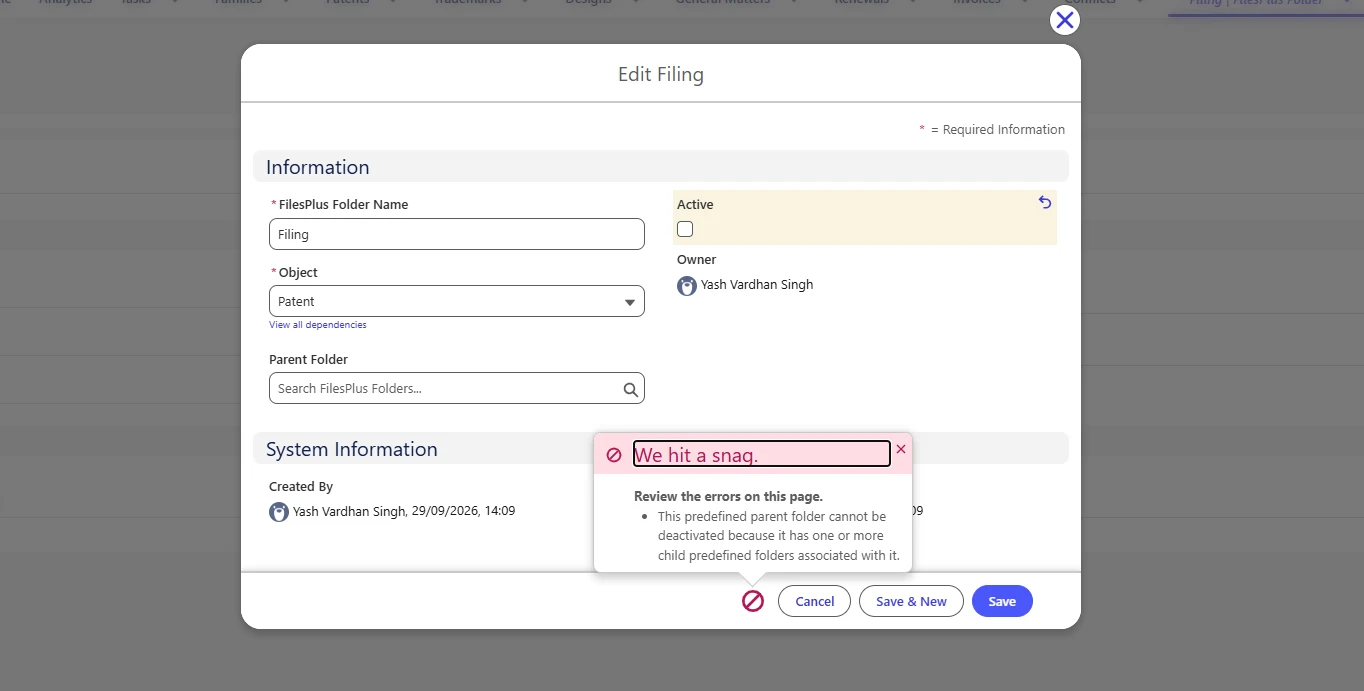
To maintain the integrity of the configured folder hierarchy, the system prevents administrators from deleting or deactivating a predefined parent folder that has one or more child folder configurations.
Before a parent folder can be deleted or deactivated, all child folder relationships must first be removed or reassigned.
If an administrator attempts to delete a parent folder that has child folders configured, the following validation message is displayed:
This predefined parent folder cannot be deleted because it has one or more child predefined folders associated with it.
If an administrator attempts to deactivate a parent folder that has child folders configured, the following validation message is displayed:
This predefined parent folder cannot be deactivated because it has one or more child predefined folders associated with it.
This validation ensures that predefined folder configurations remain structurally valid and prevents administrators from creating broken or orphaned folder hierarchies.
Active and Inactive Configurations
Only predefined folders marked as Active are considered during automatic folder creation and synchronization.
Administrators can deactivate a predefined folder configuration when it should no longer be used for automatic creation, subject to the hierarchy validation described above.
Deactivating a configuration does not modify or remove folders that have already been created on existing records.