
Overview
Instead of recreating every link manually, you can copy all or some of the case links from an existing case directly onto your current case. This is useful when a new case inherits the same relationships as an existing one, or when managing large portfolios where consistent link structures are needed.
This feature is available to Inventors, Case Managers, Attorneys, Heads of IP, External Agents, and Questel Administrators.
Step-by-Step: Copying Links from Another Case
Step 1 — Open the Link Case(s) button
On any case record, click the Link Case(s) button. A modal appears offering two options:
- Add new case link
- Copy links from another case
Select Copy links from another case and click Next.
Step 2 — Select the source case
A modal titled "Case links copy" opens with two fields:
- Current [case] — Pre-filled (read-only) with the case you started from.
- Case to copy links from — A lookup on the same asset type as your current case. Search for and select the case whose links you want to copy. If you select the same case as the current one, the error "You cannot copy the links of the same case." is shown in red.
Step 3 — Review and select links to copy
Once a source case is selected, its existing links are loaded and displayed in separate grids, one per relationship type (e.g. Generally Related, Priority Applications, Terminal Disclaimer, etc.). Only grids that contain at least one eligible link are shown.
The following links are automatically excluded from the grids:
- Links that point back to your current case (to prevent circular references).
- Links that already exist on your current case (same current case + same linked case + same relationship type).
All remaining links are displayed and pre-selected by default. You can:
- Deselect individual links using their checkboxes.
- Deselect all links in a grid in a single action.
- Edit the Notes field for any individual link before copying. Hover over the Notes field with your mouse to see the full text if it is truncated.
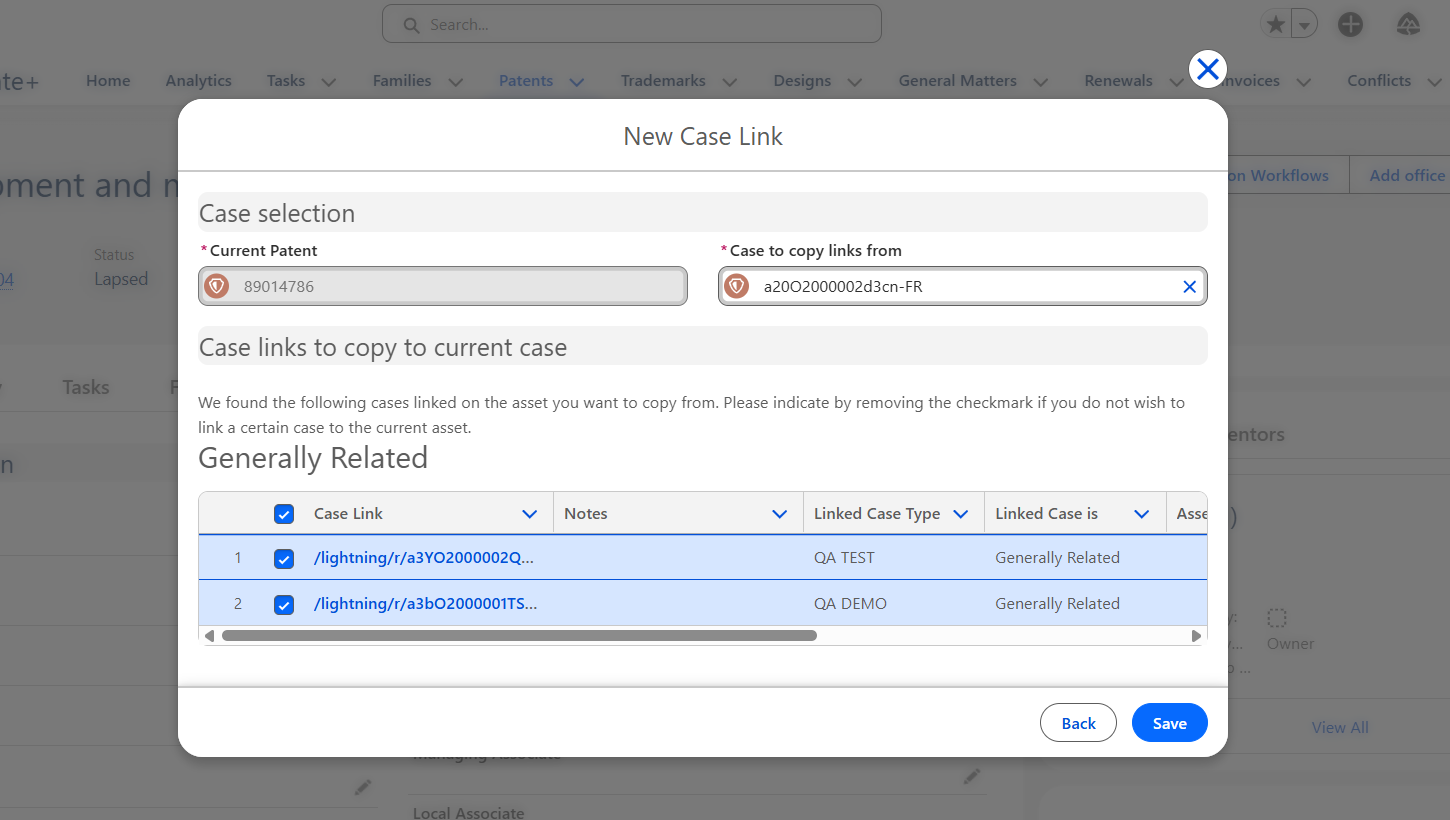
Note: The Save button is only enabled when at least one link is selected across all grids.
Step 4 — Save
Click Save. For each selected link, the system creates a new Case Link record on your current case, along with its automatic reverse link on the linked case. Any related automations also trigger — for example, expiry date calculations for Terminal Disclaimer relationships, Priority field updates, and EUTM Seniority checkbox logic.
Click Back at any point to return to the option selection screen without saving.
Frequently Asked Questions
Can I copy links from a case of a different type?
No. The "Case to copy links from" lookup is filtered to the same asset type as your current case. For example, if you are on a Trademark, you can only copy from another Trademark.
What if the source case has no links?
The modal will display the message "No Case link found" and no grids will appear. You will not be able to save.
What if all the source case's links already exist on my current case?
All eligible links will be hidden (as they already exist), and the message "We did not find any cases linked to the case you wanted to copy from." will appear. The Save button will remain disabled.
Can I edit the Notes for individual links before copying?
Yes. The Notes field is the only editable field in the grids. Click into it to type or update a note for any specific link before saving.
Will automations run on the copied links?
Yes. Any automation that normally triggers when a Case Link of a given type is created will also run for copied links — including Terminal Disclaimer expiry calculations, Priority Type updates, and EUTM Seniority logic.