
Overview
The Case Link feature lets you create a structured relationship between any two IP cases. A "Link Case(s)" button is available on every case record, regardless of type. When you link two cases, the system automatically creates the reverse link on the other case as well — so both sides of the relationship are always visible.
This feature is available to Inventors, Case Managers, Attorneys, Heads of IP, External Agents, and Questel Administrators.
Supported Asset Types
Case links can be created between any two of the following asset types:
- Patent
- Trademark (TM)
- Design
- Third Party Right
- General Matters
- Conflicts
- Invention Disclosure
- Family
Or by any other custom asset (please see)
Step-by-Step: Creating a New Case Link
Step 1 — Open the Link Case(s) button
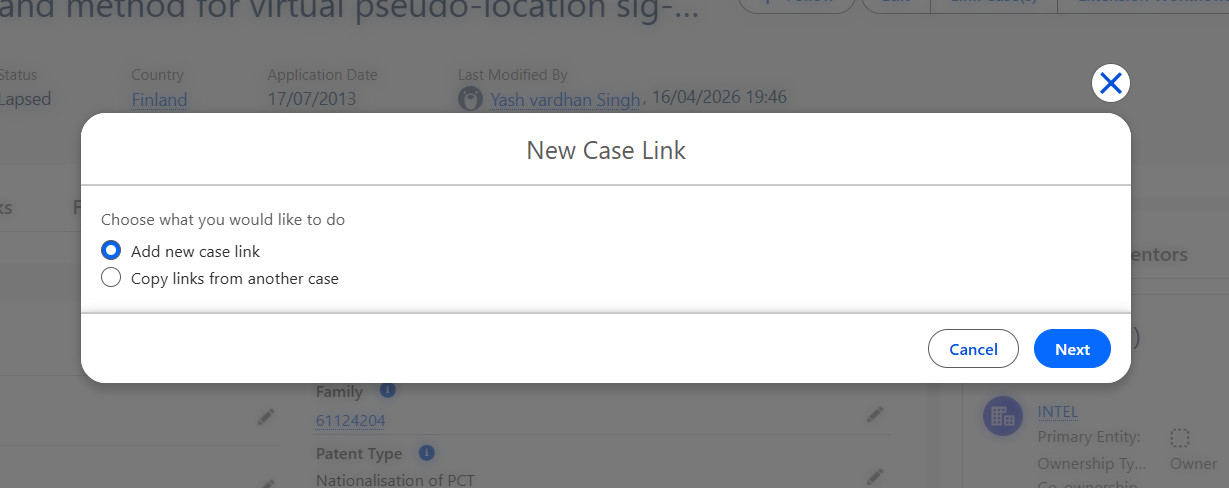
On any case record, click the Link Case(s) button. A modal appears offering two options:
- Add new case link
- Copy links from another case
Select Add new case link and click Next.
Step 2 — Complete the New Case Link form
A modal titled "New Case Link" opens with the following fields:
- Current [case] — Pre-filled (read-only) with the case you started from.
- Linked Case Type — Select the type of case you want to link to (e.g. Patent, Trademark, Design). The Save button remains disabled until this field is filled. Changing this value will clear the Linked case lookup field below.
- Linked Case Subtype— Appears only when the selected Linked Case Type has sub-categories. Select a subtype to narrow down the lookup results:
- Third Party Rights: Design, Other, Patent, Trademark
- General Matters: Search, Watch, Domain Names, Copyright, Contract
- Conflicts: Patent Litigation, Patent Opposition, Trademark Litigation, Trademark Opposition, Design Litigation, Design Opposition
- Linked [case] — Appears once a Linked Case Type is selected. Use the lookup to search for and select the specific case you want to link to. If a subtype was selected, the results are automatically filtered.
- Linked Case is — Appears once a Linked Case Type is selected. Defines the nature of the relationship. Defaults to Generally Related. Available values:
- Generally Related
- Controlling Patent (Terminal Disclaimer)
- Dependent Patent (Terminal Disclaimer)
- Priority Application
- Subsequent Application Claiming Priority
- Seniority Trademark
- EU Trademark Claiming Seniority
- If you change the Linked Case Type after selecting a relationship, the field is cleared only if the previously selected relationship is not compatible with the new type.
- Notes — Appears once a Linked Case Type is selected. A free-text field to add any relevant context to this specific link.
Step 3 — Save or go back
- Click Save to create the link. The system checks for duplicates: if an identical link (same current case + same linked case + same relationship type) already exists, saving is blocked and the message "This link already exists, you can't duplicate it." is shown below the Linked Case is field. Otherwise, two records are created — the direct link and its automatic reverse link on the other case.
- Click Back to return to the option selection screen (Step 1).
Frequently Asked Questions
Can I link a case to itself?
No. The system prevents self-linking for all asset types and displays an error message if you attempt it.
Do I need to create the reverse link manually on the other case?
No. The reverse link is created automatically when you save. Both cases will show the relationship in their Case Links tab.
What happens if I change the Linked Case Type after picking a relationship?
The linked case lookup is cleared. The "Linked Case is" field is also cleared if the previously selected relationship type is not valid for the newly selected asset type. Otherwise it is kept.
Can I edit a Case Link after creating it?
Only the Notes field is editable on an existing Case Link record. All other fields are read-only once the link has been saved.
Can I link two cases of different types?
Yes. For example, you can link a Patent to a Trademark, or a Design to a Conflict. All combinations between the eight supported asset types are available.