
Overview
The Check-Out / Check-In feature lets you lock a document so that only you can edit it. While a document is checked out, all other users can still view it in read-only mode but cannot modify it, upload new versions, or delete it. When you are done, you check the document back in to release the lock and restore access for everyone.
This feature is available to Standard Users, Administrators, and Questel Administrators.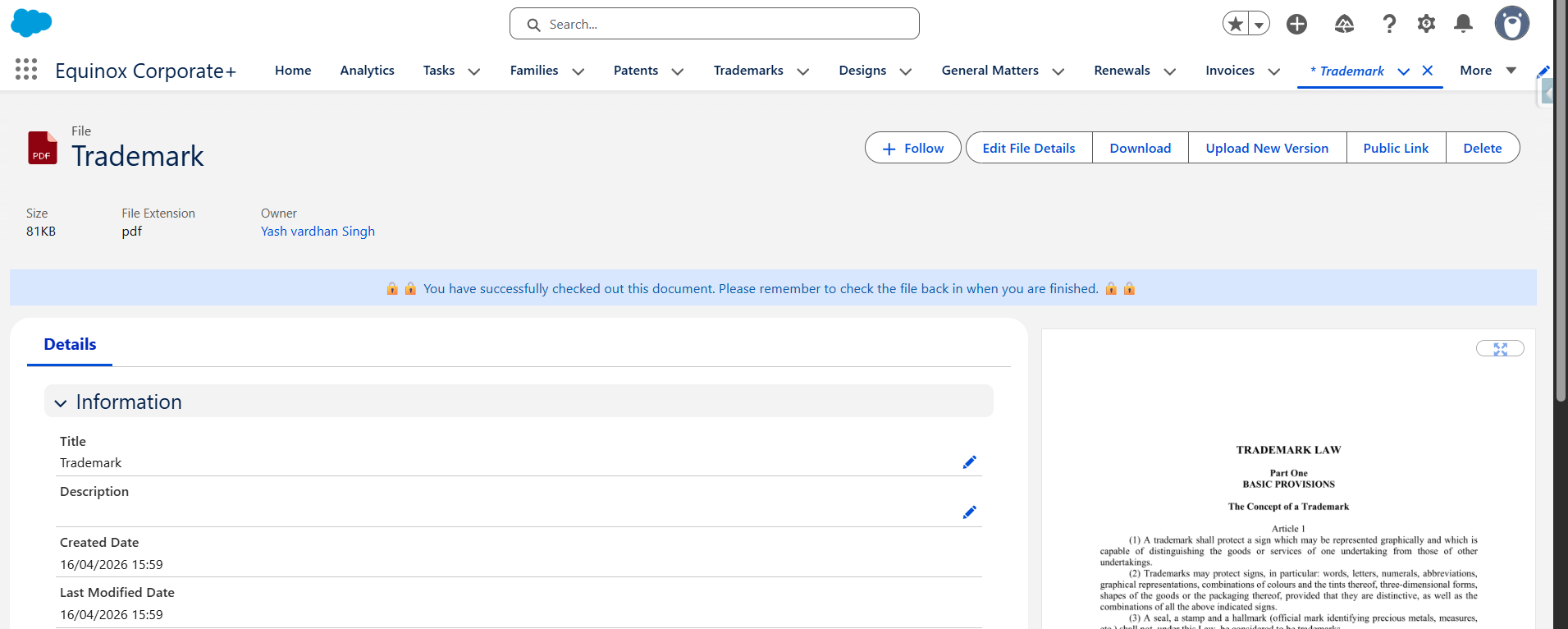
Checking Out a Document
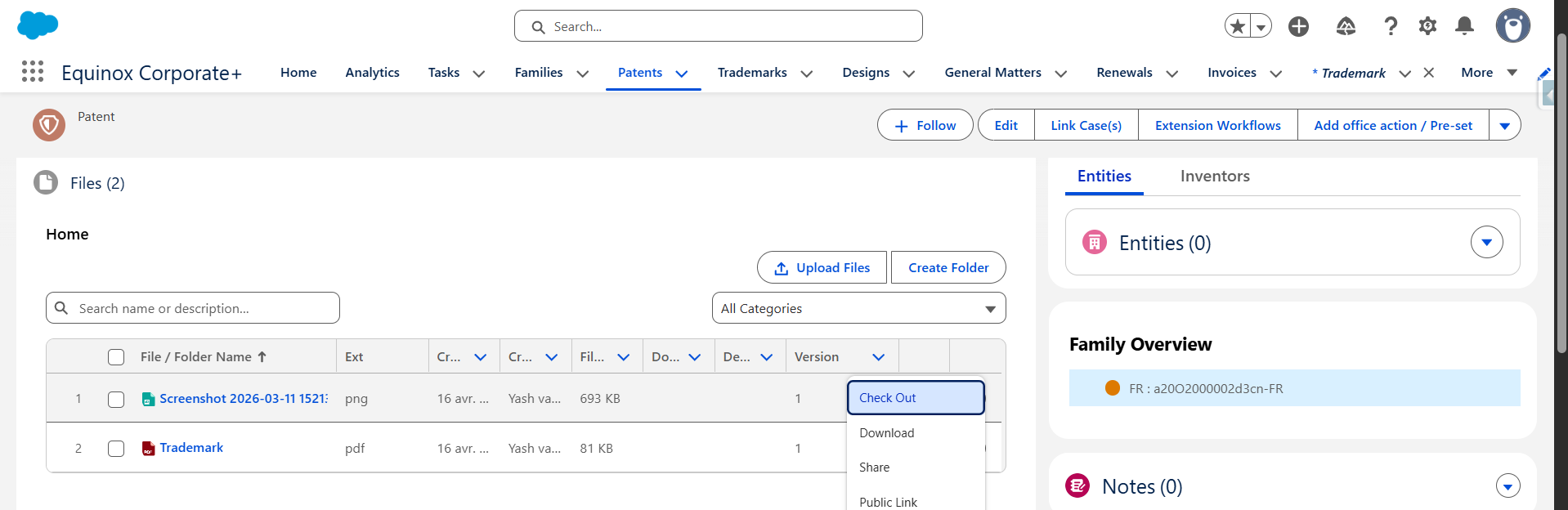
- Go to the Files tab on any case record and open the document you want to lock by clicking its name or selecting View File Details from its action menu.
- On the file record page, click the actions menu and select Check Out (located between Edit File Details and Delete).
- A confirmation pop-up explains what check-out means. Click Yes to confirm.
- The page refreshes and a green banner confirms the file is now checked out and locked to you. The Check Out button is replaced by a Check In button.
Tip: If you change your mind, click No in the confirmation pop-up to cancel without locking the document.
What You Can Do While a Document Is Checked Out (as the Checkout User)
As the user who checked out the document, you retain full access:
- Edit metadata fields on the file.
- Upload a new version (you can leave a comment explaining the reason for the change).
- Download the file.
- Delete the file.
What Other Users See When a Document Is Checked Out
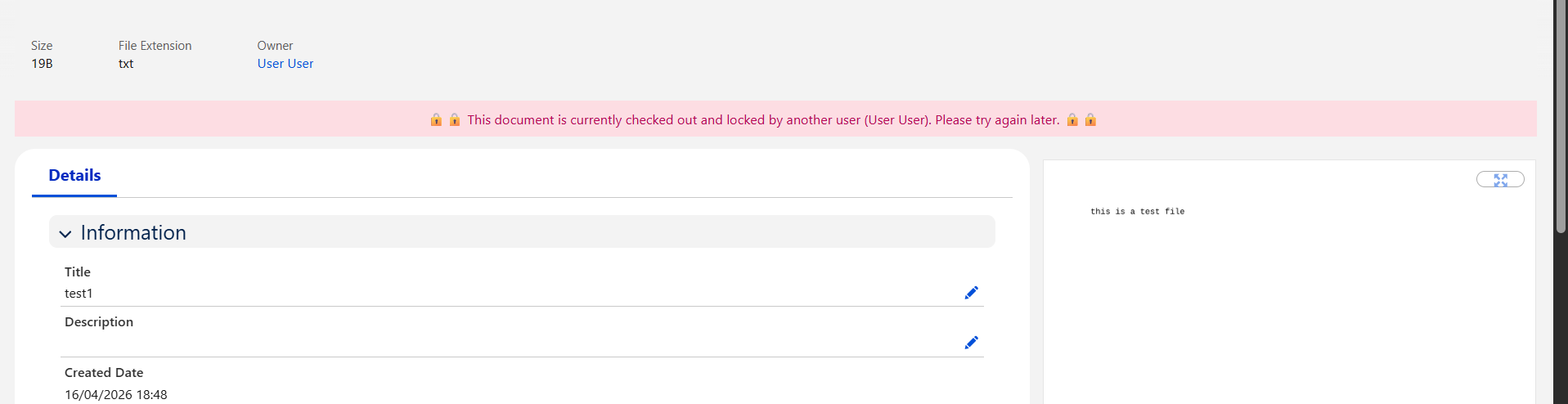
Any other user who opens a checked-out document sees a red warning banner identifying the file as locked and displaying the name of the user who checked it out. On that page:
- All action buttons are hidden — no edits, no uploads, no downloads, no deletions.
- The file is in read-only mode.
In the Files tab document list, checked-out files are visually distinguished:
- The file type icon is replaced by a lock icon.
- The file name link is displayed in grey — it remains clickable so users can still open the read-only file record page.
- The only available action in the list is View File Details.
Checking a Document Back In
- Open the checked-out document's file record page.
- Click Check In in the actions menu (visible in place of the Check Out button).
- The banner disappears, the lock is released, and all other users regain their normal access to the document.
Administrator Override
A System Administrator can check in (unlock) any document, regardless of who originally checked it out. This prevents situations where a document remains permanently locked — for example, if the user who checked it out is on leave or has left the organisation.
To override: navigate to the locked file's record page and use the Check In action in the actions menu.
Frequently Asked Questions
Can I check out a document from the Files tab list directly?
No. The Check Out action is available on the file record page only. From the Files tab, click the action menu on the document and select View File Details to reach the file record page, then use Check Out from there.
Can multiple users check out the same document simultaneously?
No. Only one user can hold the check-out lock on a document at a time. Other users must wait for the document to be checked in before they can check it out themselves.
What happens if I navigate away from the page while a document is checked out?
The document remains checked out. The lock is tied to you as a user, not to your current browser session. You can return to the file at any time and check it in.
Can other users download a checked-out document?
No. While a document is checked out, other users cannot download, edit, upload new versions of, or delete it. They can only view its details in read-only mode.
I checked out a document by mistake. Can I immediately check it back in?
Yes. Simply click Check In on the file record page immediately after checking out. The lock is released instantly.
A colleague checked out a document and is now unavailable. What should I do?
Contact your System Administrator. Administrators can override any check-out and release the lock without needing the original user's involvement.