
Overview
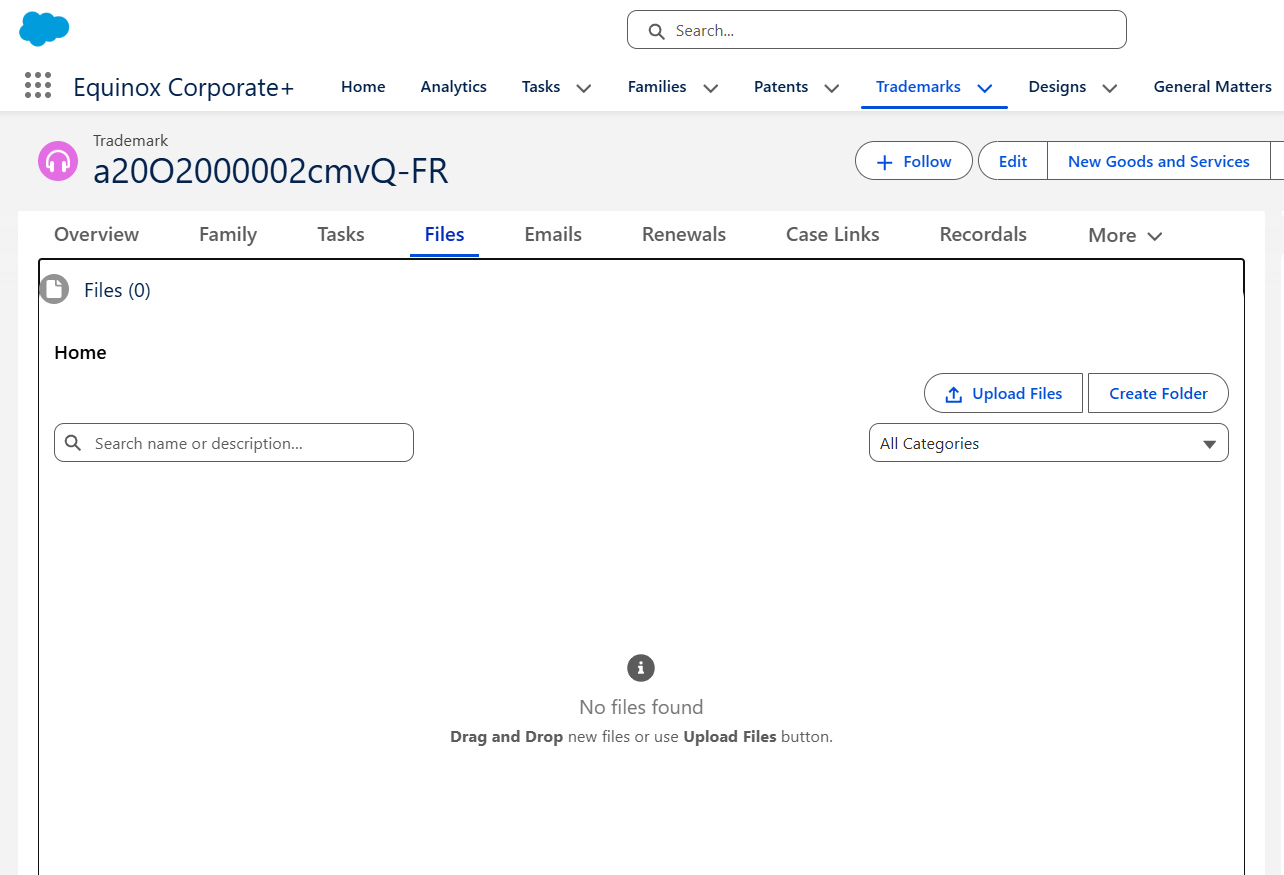
You can upload documents to any case record either by dragging and dropping files directly onto the Files tab, or by using the standard upload button. Both methods support uploading up to 10 files at once and allow you to define metadata for each file during the upload — saving you from having to update each file individually afterwards.
This feature is available to Standard Users, Administrators, and Questel Administrators.
File limitations:
| File size |
|
| Maximum number of versions per file |
|
| Preview |
|
| File Sharing limits |
|
Uploading via Drag and Drop
- Open a case record and navigate to the Files tab.
- From your computer's file explorer, drag one or more files (up to 10) over the Files tab component.
The component responds visually: a blue dashed border appears around the drop zone, along with the message "Drag and drop your files here" and "Upload up to 10 files". - Drop the files. The upload and metadata panel opens automatically.
Note: The system detects whether you are uploading from the home level or from inside a folder, and places the files in the correct location automatically.
Uploading via the Upload Button
Click the upload button in the Files tab to open your file explorer and select one or more files (up to 10). The same upload and metadata panel opens once files are selected.
The Upload & Metadata Panel
Once files are loaded, a panel opens with two sections side by side.
Left side — Upload progress
For each file you will see:
- The file name and file size.
- An upload progress bar that fills as the file uploads.
- A success icon once the upload is complete.
- An error message if a file fails to upload.
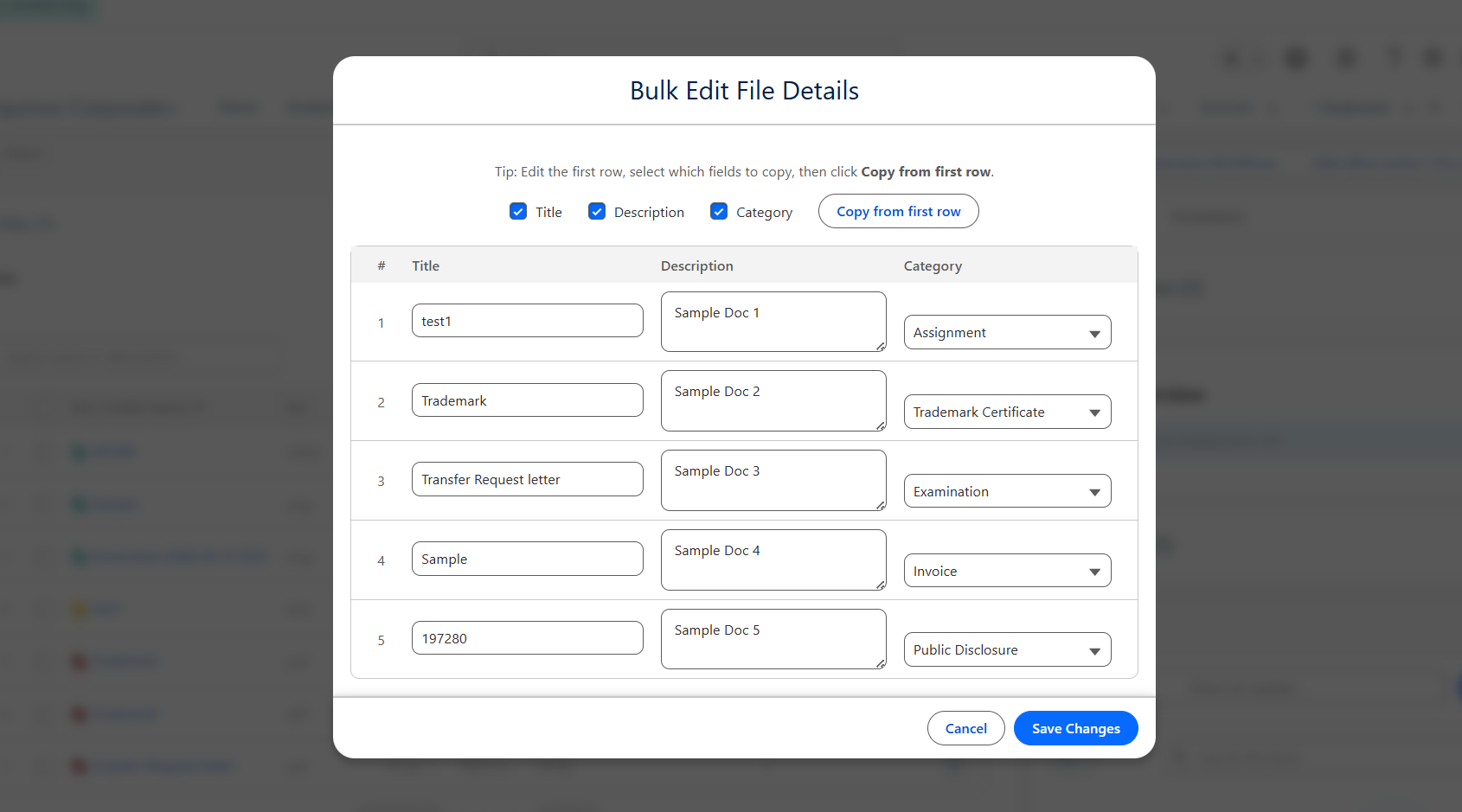
At the bottom of this section, a counter shows the number of files successfully uploaded out of the total (e.g. "7 of 10 files uploaded"), updating in real time.
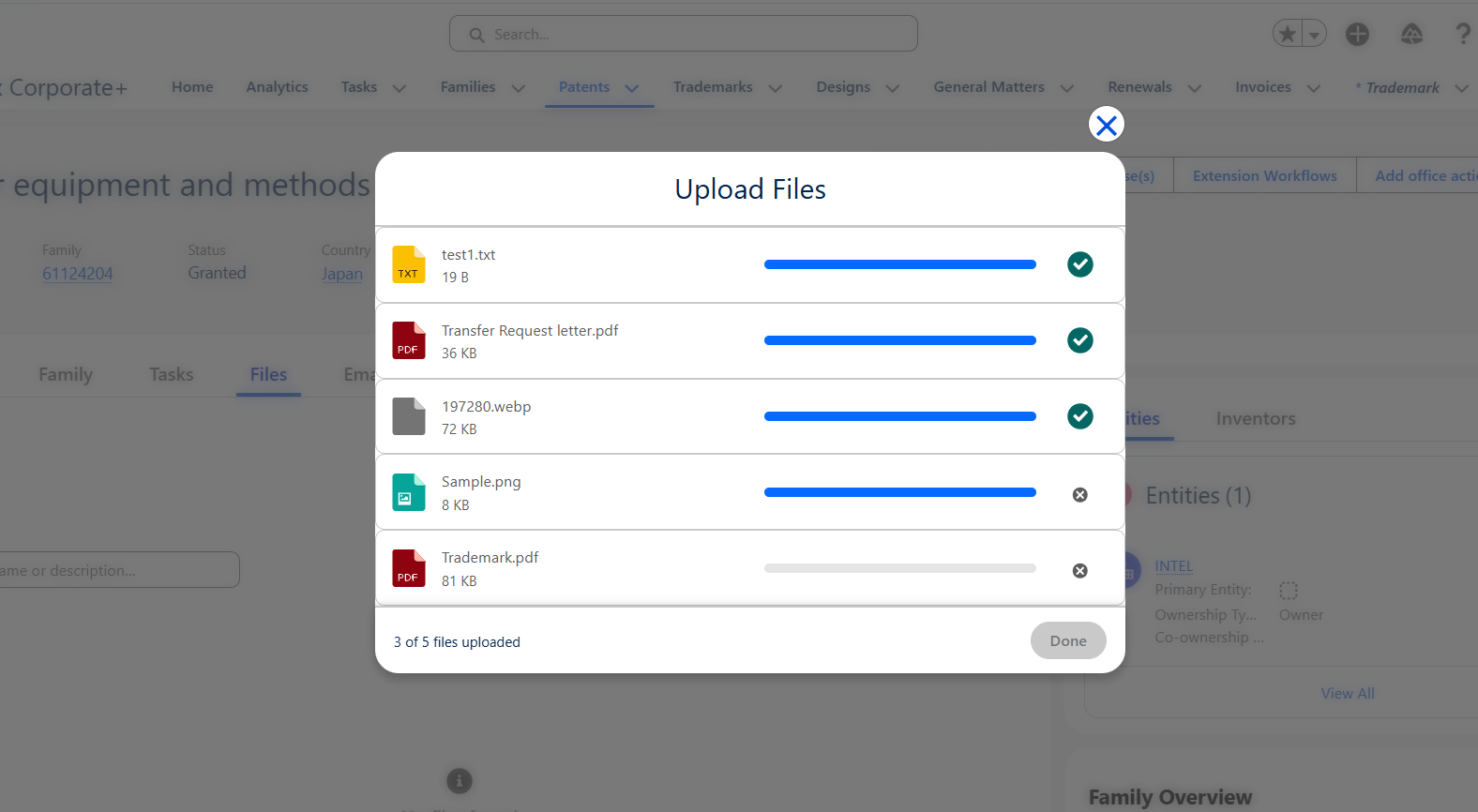
Right side — Metadata editing
The relevant metadata fields for the selected file are displayed and ready to be filled in. The first file is pre-selected by default when the panel opens.
- Click on any file in the left panel to switch to it. Its metadata fields appear on the right. Values you have already entered are preserved as you move between files.
- On the first selected file, an option "Copy the metadata to the other uploaded files" is available. Checking this copies all values currently entered for the first file to every other file in the upload batch. You can then click through individual files to override specific values as needed.
Saving Your Upload
Once you are satisfied with the metadata for all files, click Save.
- You are redirected back to the home level, or to the folder you were in when you initiated the upload.
- A success toast message confirms the number of new files uploaded.
Frequently Asked Questions
How many files can I upload at once?
Up to 10 files per upload operation. This is a platform limit. If you need to upload more than 10 files, simply repeat the upload process.
Do I have to fill in metadata before saving?
Metadata fields are optional unless your administrator has configured specific fields as mandatory. If a required field is left empty, you will be prompted to complete it before saving.
Can I copy metadata from the first file to all others and then change one of them?
Yes. Check the "Copy the metadata to the other uploaded files" option on the first file, then navigate to any individual file and update its fields. Changes made to individual files after copying are preserved independently.
What happens if one file fails to upload?
An error message is shown next to the failed file in the progress list. The other files that uploaded successfully are still saved when you click Save.
Where do my files land after saving?
Files are placed in the location where the upload was started — either at the home level of the Files tab, or inside the folder you were navigating when you initiated the drag and drop or upload.