
Overview
The Files tab is available on every case record (Patents, Trademarks, Designs, and all other case types). It gives you a single, centralised place to view, upload, search, and act on all documents attached to that case.
This feature is available to Standard Users, Administrators, and Questel Administrators.
Document List
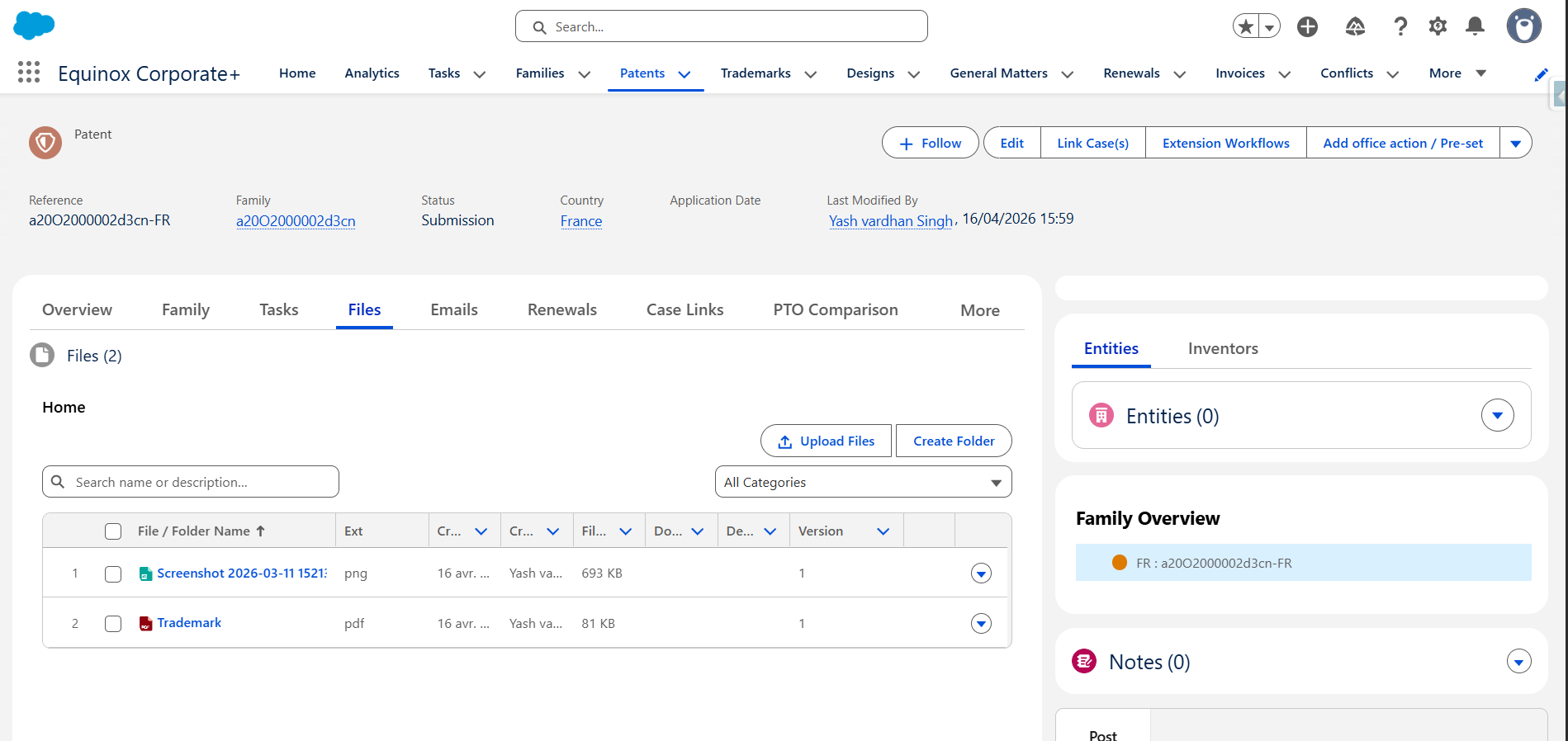
When you open the Files tab, all documents attached to the case are listed. Each document displays a file type icon based on its extension — for example, a PDF icon for .pdf files, a Word icon for .doc and .docx files, and an image icon for .png and .jpeg files. Unrecognised formats display a generic icon.
A document count is shown at the top of the component, reflecting the total number of files attached to the case. This count updates dynamically and is not limited by the current page view.
When no documents are attached, an empty state illustration is displayed.
Searching Documents
Use the search bar at the top of the Files tab to find documents quickly. The search runs across all documents on the case and looks inside both the file name and the description of each file.
Pagination
Documents are displayed in pages of 15 per page by default. Use the pagination controls at the bottom of the list to navigate between pages.
Actions on a Single Document
Click the action icon on any document to see the available options:
- Download — Download the file to your computer.
- Share — Open the sharing window to grant access to specific users within your organisation.
- Public Link — Generate a shareable URL to distribute the document outside the platform.
- View File Details — Open the document's dedicated record page (see below).
- Upload New Version — Open your file explorer to upload a new version of the document.
- Edit File Details — Edit the document's metadata fields.
- Delete — Permanently delete the document. A confirmation modal is required before the deletion is applied.
- Remove from Record — Detach the document from this case without deleting the file. The file continues to exist but is no longer linked to this record.
Selecting Multiple Documents
You can select several documents at once using the checkboxes. A counter showing "X items selected" updates dynamically as you make your selection. The following bulk actions become available:
- Download — Download all selected documents individually.
- Download as .zip — Package all selected documents into a single ZIP archive and download it in one click.
- Copy to Another Case — Available when at least 2 documents are selected. Clicking this button opens the Copy to Another Case modal (see below).
Copying Documents to Another Case
- Select the documents you want to copy (at least 2).
- Click Copy to Another Case.
- In the modal, select the object type (e.g. Patent, Trademark, Design) of the destination case.
- Use the lookup field that appears to search for and select the target case record.
- Once both fields are filled in, click Copy.
A success notification confirms the documents were copied. If an error occurs, a message prompts you to try again.
Note: You can only copy to objects that are accessible based on your permission set.
The File Record Page
Every document has its own dedicated record page, accessible via View File Details in the action menu. This page includes:
- Highlight Panel — A compact summary of key metadata, with the same action buttons as in the Files tab.
- Details — All core and custom metadata fields for the document.
- Related Cases — All case records currently linked to this document, with the ability to add or remove links.
- Versions — The full version history of the document. You can view and download any previous version.
- Preview — A preview of the document content directly in the page.
- History — A log of all field changes made to the document record over time.
- Tags — A widget for adding and managing topic tags on the document.
Frequently Asked Questions
What is the difference between "Delete" and "Remove from Record"?
Delete permanently removes the file from the system. Remove from Record only removes the link between the file and the current case — the file itself still exists and may still be linked to other records.
Can I copy a single document to another case?
Yes. Select the document using the checkbox, then use the Copy to Another Case action. The button becomes available once at least one document is selected.
Can I preview a document without downloading it?
Yes. Click the file name directly in the list to open a preview, or go to the file record page where a preview panel is available.
Can I add a comment when uploading a new version?
Yes. When uploading a new version, the upload window includes a comment field where you can record the reason for the change.
How many documents can I download as a ZIP at once?
You can select and download as many documents as are displayed in the current view. The ZIP is generated on the fly and downloaded to your computer.