
Overview
The Folder Management feature allows you to organise documents attached to your cases into folders and sub-folders directly within the Files tab. Instead of having all documents in a single flat list, you can group them by topic, stage, or any structure that fits your workflow.
This feature is available to Standard Users, Administrators, and Questel Administrators on all core case objects (Patents, Trademarks, Designs, etc.).
Creating a Folder
- Open a case record and navigate to the Files tab.
- At the home level, click the Create new folder button.
Note: this button is only visible at the home level — it is not available when you are already inside a folder. - In the modal that opens, enter a folder name.
- Click Create Folder.
You are automatically redirected into the newly created folder.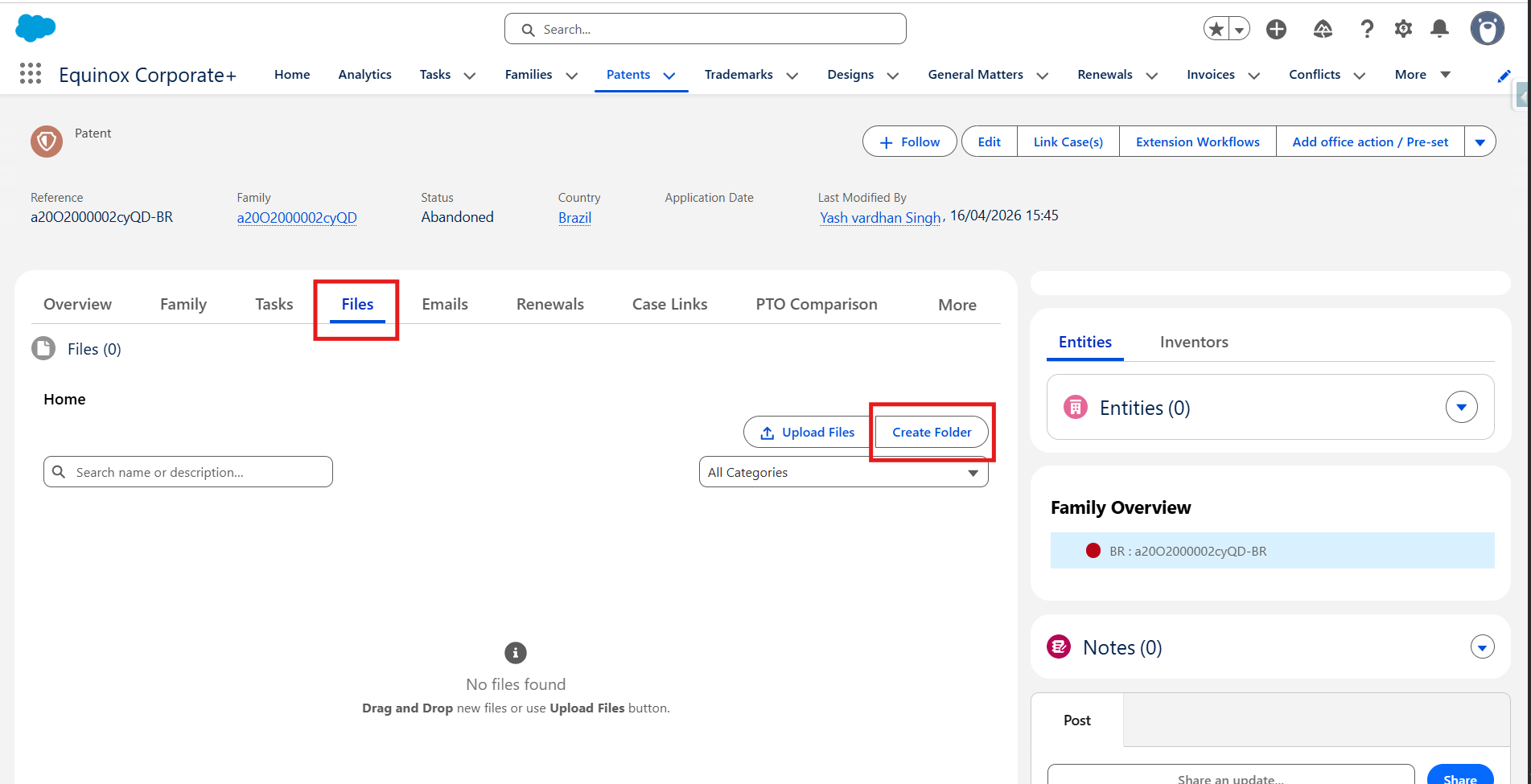
Folder name rules
- Maximum 80 characters.
- Must be unique — you cannot create two folders with the same name on the same case.
- The Create button remains inactive until at least one character has been entered.
Navigating Folders
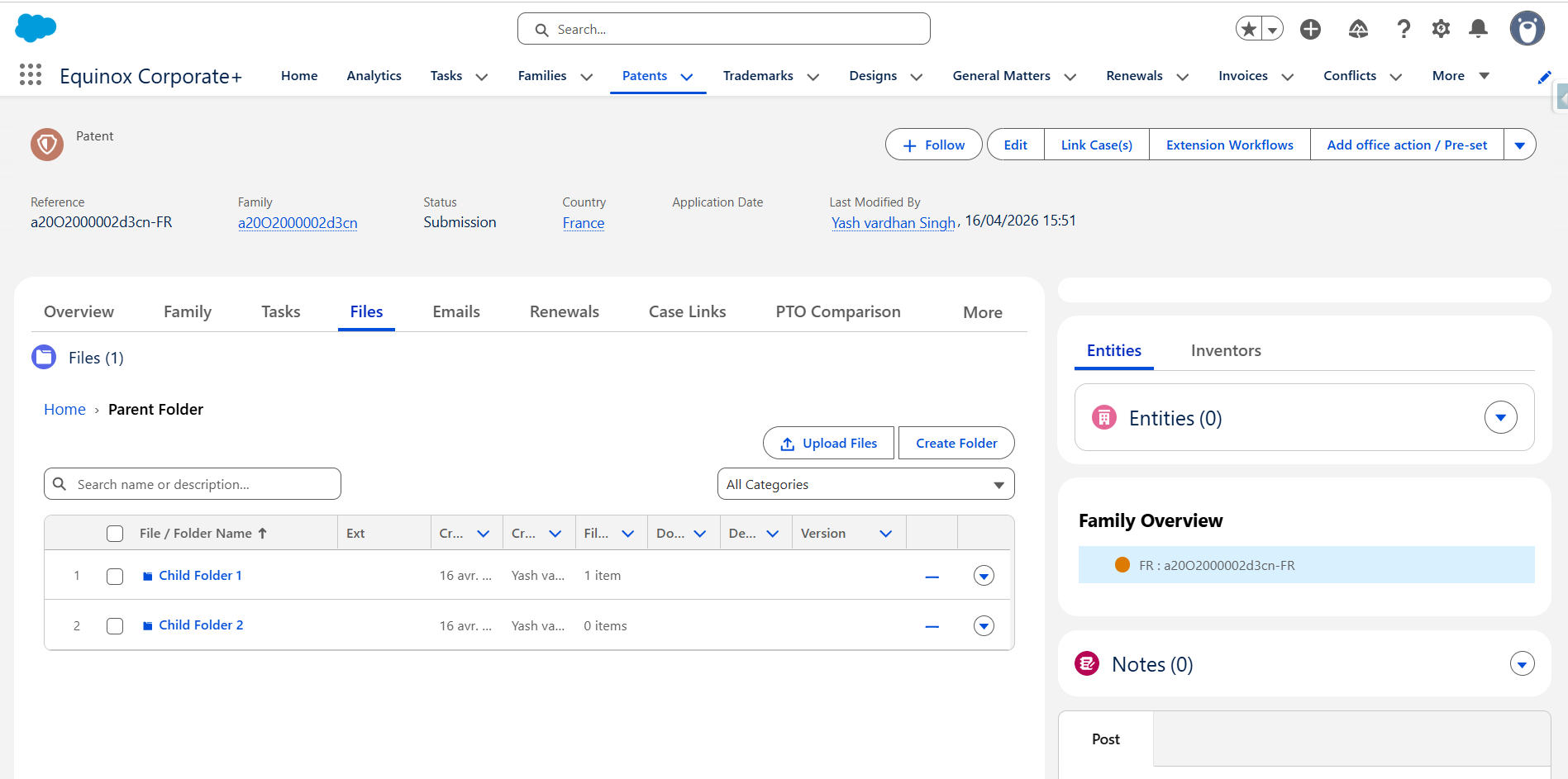
When you are inside a folder, a breadcrumb trail appears at the top of the component showing your current location.
- Home is always the first level. It appears in bold blue and is clickable — click it at any time to return to the root level.
- The current folder name is shown in regular black text and is not clickable.
- For multi-level folders, the full path is shown at every level — for example:
Home > Prosecution > Office Actions > 2024.
The document count displayed in the header updates automatically to reflect only the files inside the folder you are currently viewing.
Creating Sub-Folders (Multi-Level)
You can create folders inside existing folders to build a deeper hierarchy. There is no enforced limit on the number of levels.
- Navigate into an existing folder.
- Click Create new folder to create a sub-folder at that level.
- The breadcrumb updates to show the full path as you go deeper.
Renaming a Folder
- From the home level, locate the folder you want to rename.
- Click the Actions menu on the folder.
- Select Rename and enter the new name.
- Confirm. You are redirected back into the folder under its new name.
Deleting a Folder
- From the home level, click the Actions menu on the folder you want to delete.
- Select Delete.
- A confirmation pop-up appears — confirm the deletion to proceed.
Important: Deleting a folder does not delete the files inside it. Any documents stored in the deleted folder are automatically moved back to the home level.
Working with Files Inside a Folder
All standard document actions are available inside a folder, including:
- Uploading new files (via the upload button or drag and drop).
- Selecting multiple files and using bulk actions such as Copy to Another Case and Download as .zip.
If a folder contains no documents, an empty state illustration is displayed to let you know the folder is empty.
Frequently Asked Questions
Can I create a folder inside another folder?
Yes. The system supports multiple levels of sub-folders. Navigate into an existing folder and use the Create new folder button to add a sub-folder.
Can I move a folder from one case to another?
No. Folders are specific to the case record they were created on. To move documents to another case, use the Copy to Another Case action on the files themselves.
What happens to files if I delete a folder?
Files are never deleted when you delete a folder. They are automatically moved to the home level of the Files tab on the same case.
Can two folders on the same case have the same name?
No. Folder names must be unique within the same case. You will receive a validation error if you try to create a duplicate name.
I don't see the Create new folder button. Why?
The button is only shown at