
New Features
Email Management
What it does
Equinox Corporate+ ingests inbound emails, auto-matches them to the right case (family, patent, design, trademark, general matter, conflict, third-party right, reference/prior art, invention disclosure), stores the original .eml for audit, and saves any attachments straight into the case’s Files area (Salesforce Files). Users can also compose, reply, reply-all, and forward directly from the Emails tab on any supported object.
How inbound email matching works
- Reference detection: The service scans the Subject and Bodyfor a case reference wrapped in a delimiter.
- Default delimiter: [<reference>] (e.g., Re: [PAT2025456]).
- Configurable: You can change the delimiter pattern (see Configuration below).
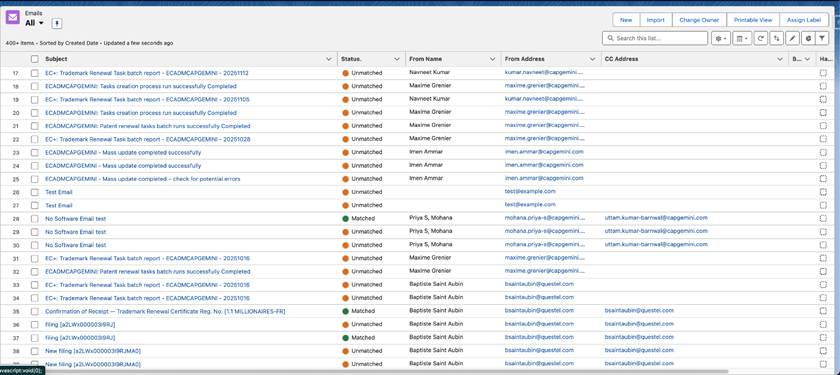
- Record match: When a valid reference is found, the email is linked to the matching case and an Email Message record is created on that case. If no match is found, we still create the Email Message (marked Unmatched) so it can be manually linked later.
- Duplicate safety: Signature blocks and repeating references are ignored to avoid accidental duplicate email creation.
From the Email tab: Access Unmatched and Matched Status
What is stored
- Email Message record: Sender, recipients, subject, body, match status, related case, and timestamps.
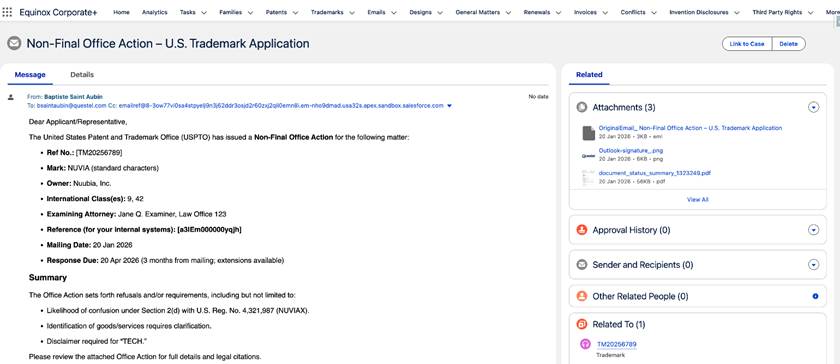
- Audit copy (.eml): The full original message is saved as an attached .eml file for audit and evidentiary purposes. (Also used when messages are renamed by rule.)
- Attachments: All inbound attachments are saved as Salesforce Files and linked to the case, not just to the Email Message. An “attachment present” check helps operators verify nothing is missed.(this auto copy could be disabled)
End-user workflow
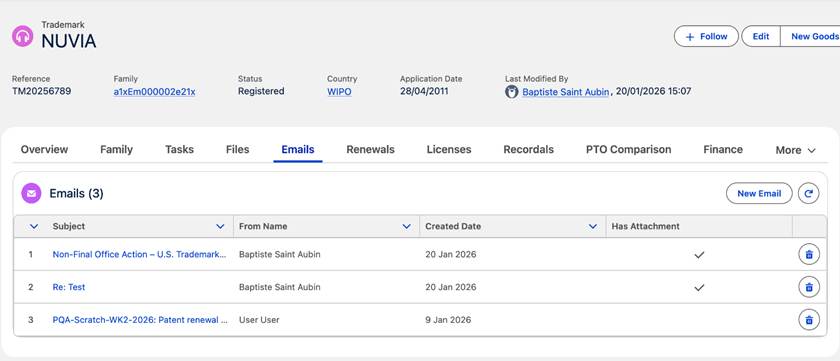
- Receive & view: Go to Emails tab on the case to see auto-matched mail. A Matched / Unmatched indicator is shown.
- Open details: Open an email to read body, download the .eml (audit copy), and see attachments.
- Files are ready: Attachments are already visible in Files on the same case, with standard actions (download, share, public link, new version, copy to another case, delete/remove from record).
- Manual match (if needed): For Unmatched emails, use Link to a case to (re)connect the email to the correct case.
- Send email: From the case Emails tab, click New Email (and use Reply / Reply All / Forward on existing messages) to send directly from EC+.
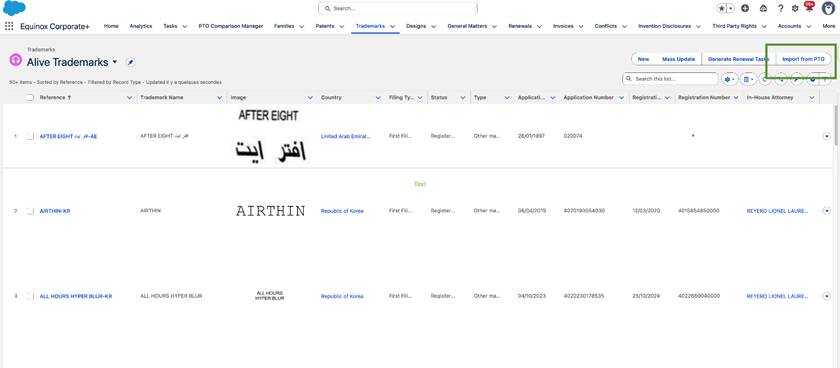
Import Single Trademark from PTO
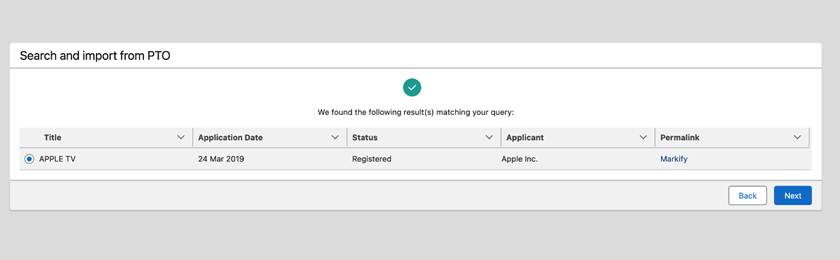
A one-click way to bring authoritative trademark data into Equinox Corporate+. Search Markify by application or registration number + country (V1), pick the right record, and import a complete trademark—no manual retyping.
Why it matters
- Faster onboarding: add a single TM in minutes from a trusted source.
- WIPO management: import WIPO trademark and all its designations as separated trademarks
What gets imported
Core fields such as Name, Images, Type, Filing Type, Status, Priority (date/number), Application & Registration (dates/numbers), Expiry, Classes, plus Applicant details and handy links (PTO link, Markify permalink). Where available, Goods & Services are saved alongside classes.
WIPO made smart
If the source is WO, EC+ also creates designation cases, respecting single-class jurisdictions, and flags no-longer-designated entries as closed. For WO, classes/G&S are taken from each designation’s own details (not the WO parent) to ensure jurisdiction-accurate data.
Nice classes & G&S details
EC+ collects all active classes and stores Goods & Services.
German Inventor Remuneration Calculator
Automate compliant inventor payouts for Germany—directly in Equinox Corporate+.
Why it matters
Germany has specific statutory rules for calculating inventor remuneration. Our calculator brings those rules into EC+, so you can compute, document, and pay German inventor rewards accurately—without spreadsheets or side systems.
What it does
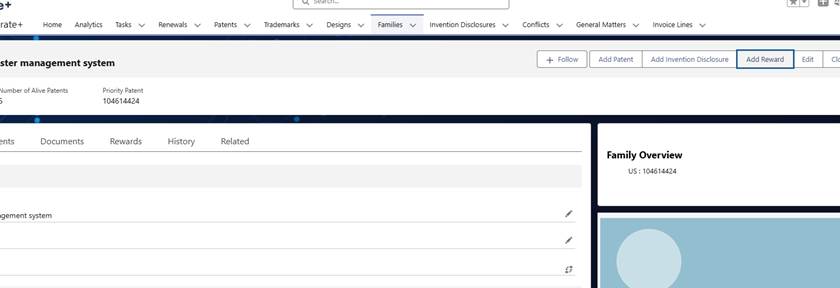
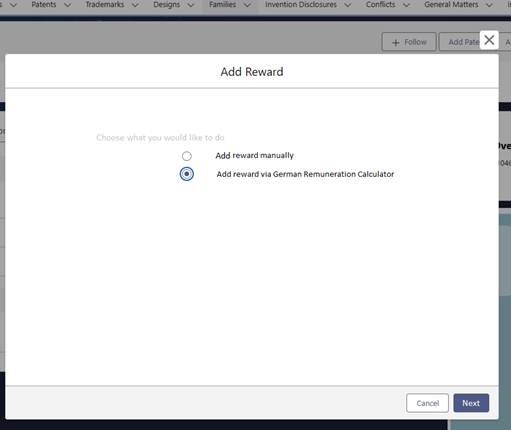
- One-click launch from the Family
Start from a Patent Family and choose “Add reward via German Remuneration Calculator” (keeps the manual path too). - Built-in "ArbNErfG" logic
Configurable tables for License Rate (by industry), Turnover Ranges with multipliers, Contribution grades, and Anteilsfaktor power the calculation—no formulas to maintain.
Per-Client Configuration with Custom Metadata
What it is
A governed, no-code configuration layer that lets each Equinox Group (client) run the German ArbNErfG calculation using their tables—without touching spreadsheets or code. Admins adjust licensed parameters once; users simply click Add reward via German Remuneration Calculator on the Family and get compliant results.
Open Setup → Custom Metadata Types
The configuration model
We ship four ready-to-use Custom Metadata Types. Each record can be scoped to a client via Equinox Group ID or left as a Global Default.
- German Calc License Rate (by Industry)
- What it controls: the base “L” percentage by industry (e.g., Pharma, Electrical).
- Client knobs: set a different Global Percent per industry.
- Governance: industries are fixed; only the percentages are adjustable.
- German Calc Turnover Ranges & Multipliers
- What it controls: progressive bands (e.g., 0–3M; 3–10M; 10–20M; >20M) each with a multiplier.
- Client knobs: define your own ranges and multipliers; the last band has no maximum.
- Governance: fully admin-creatable per client.
- German Calc Contribution
- What it controls: numeric grades for the three contribution picklists (Employee contribution to solution, Solution contribution, Role & position).
- Client knobs: adjust Grade values (where permitted) to reflect internal policy.
- Governance: narratives are fixed; numbers are governed but can be made client-specific where allowed.
- German Calc Anteilsfaktor
- What it controls: maps the sum of grades to the employee share rate.
- Client knobs: typically none; can be scoped in rare, approved cases.
- Governance: shipped as a protected, canonical table.
Recommendation
Preset tasking & reminders
On client side, we recommend to add a Pre-Set Task (“Calculate German Remuneration for eligible inventors”) with a base Set Date and +2 weeks offset to keep teams on track. Works with the Law Engine and your Docketing Rules.
Enhancements
Trademark Extension Workflow
When using the trademark extension workflow for an international trademark, the application date and number are copied from the WIPO trademark to all of the designated states.
Additional Resources and Support
Documentation: Refer to the platform's documentation at
https://corporateplus.help.questel.com/en/support/solutions for detailed information on specific features, workflows, and best practices. The documentation provides step-by-step instructions and valuable insights to help you make the most of Equinox Corporate+.
Customer Support: If you require assistance or have technical issues that need resolution, reach out to our dedicated customer support team. They are available to address your queries and provide guidance to ensure a smooth and successful experience with Equinox Corporate+. Contact the support team at help@questel.com
Training and Webinars: Take advantage of training sessions and webinars offered by Equinox Corporate+. These sessions provide hands-on learning opportunities, tips and tricks, and insights into advanced features. Stay updated with the latest training schedules and join these sessions to enhance your knowledge and proficiency.
We appreciate your commitment to efficient IP management and trust that Equinox Corporate+ will be an invaluable tool in your journey. Should you have any feedback or suggestions to further improve the platform or this user guide, please don't hesitate to share them with us. We are continuously working to enhance the user experience and meet your evolving needs.
Thank you for choosing Equinox Corporate+!